Mandatory assignments
A mandatory assignment is a course or learning path that has been assigned to you with a binding due date. Unlike voluntary courses, you don't decide yourself whether to take part — the assignment comes from your trainer or manager. If a learning path is assigned, you are automatically enrolled in its mandatory courses; the assignment is only fulfilled once the entire path is completed.
Where you see a mandatory assignment
Mandatory assignments show up in several places so that you can't overlook them:
- Dashboard — a widget with all open mandatory assignments, sorted by due date. Color coding shows how urgent it's getting.
- Course catalog — cards with a mandatory assignment show the due date directly.
- Course player — in the lesson you see an info box at the top with the due date and, if applicable, a note from the person who assigned the course to you.
- Email — you get reminder mails (e.g. three days before the deadline).
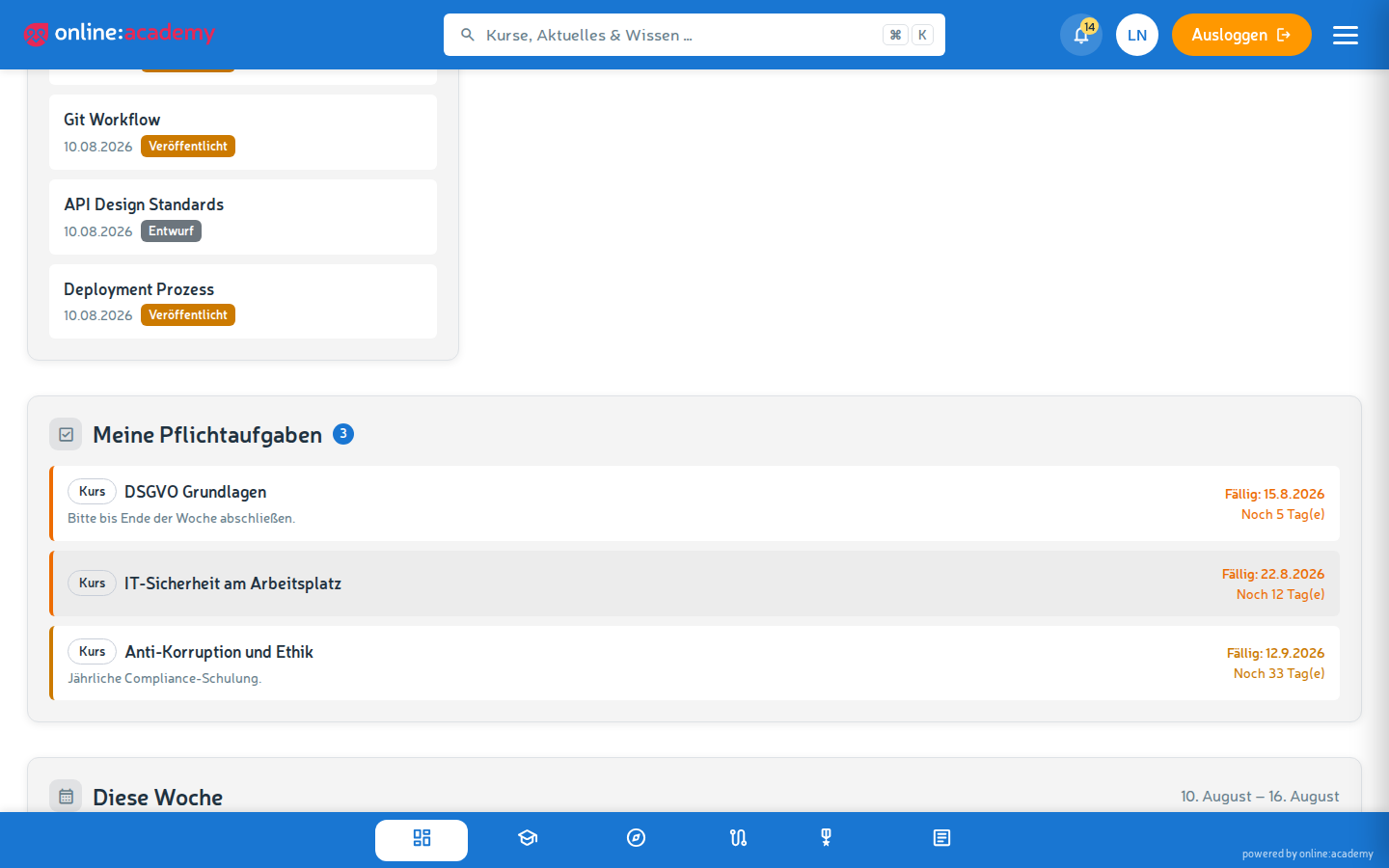
Working on a mandatory assignment
You don't have to enroll yourself — the system automatically enrolled you upon assignment. Just open the course and get going.
- Click the mandatory assignment in the dashboard or catalog.
- Start course.
- Work through it in the normal course player.
As soon as you start working on the first lesson, the status of the mandatory assignment automatically jumps from "assigned" to "in progress". After successful course completion, the mandatory assignment counts as fulfilled — that too happens automatically, you don't have to report anything manually.
The note from the assigning person
Some mandatory assignments contain an additional note — e.g. "Please before the next team meeting", "Pay special attention to chapter 3" or "Contact me if you have questions". You see the note in the course player in the info box.
Reminder emails
By default you get one reminder three days before the due date by email. Depending on the configuration by the assigning person, more reminders may come — e.g. additionally on the due date or a follow-up afterwards.
The reminder emails cannot be switched off — they stop as soon as the mandatory assignment is completed.
If you don't make the deadline
- Access to the course remains — you can keep learning even after it expires.
- The status shows, however, that the assignment is overdue.
- The assigning person sees this in their overview — it's best to talk to them early if you can foresee that you won't finish in time.
Frequently asked questions
Can I decline a mandatory assignment? No — the assignment comes from your trainer or manager and is binding. If you consider it unsuitable content-wise (e.g. because you already completed the course elsewhere), talk directly to the assigning person.
I can't find my mandatory assignment in the course catalog. Look in the dashboard under the mandatory-assignments widget — all open assignments are collected there. If there's nothing there either, ask the assigning person whether the assignment was really sent off.
My status says "in progress" even though I'm almost done. The status only jumps to "completed" once all mandatory lessons are successful and the minimum score is reached. A single lesson with too few points prevents completion.
I completed the course, but the system shows "open".
Reload the page (F5). If that doesn't help: log out and log back in. In rare cases, synchronization takes a few minutes — if it's still "open" after 10 minutes, contact your trainer or IT.
Do I get a certificate for a mandatory assignment? If a certificate template is assigned to the course: yes, automatically after completion. See Certificates and awards.
A completed mandatory assignment reappears after months — why? Some mandatory assignments are set up as recurring (e.g. an annual mandatory training). After the interval expires, the system automatically re-sets the assignment and you're notified — you then have to take the course again.