Creating H5P content
H5P (HTML5 Package) is an open standard for interactive learning content directly in the browser. With it you build content that offers considerably more interaction than classic multiple-choice quizzes — from interactive videos through memory games to flashcards.
Which H5P types are available
Pre-installed types include:
| Type | Description | Ideal for |
|---|---|---|
| Interactive Video | Videos with embedded quiz questions, hotspots, links | Tutorials with comprehension checks |
| Course Presentation | Slide-based presentation with interactions | Structured knowledge transfer |
| Drag and Drop | Match elements via drag and drop | Classification, anatomy, diagrams |
| Fill in the Blanks | Cloze texts | Vocabulary, technical terms |
| Memory Game | Memory with card pairs | Term pairs, synonym exercises |
| Image Hotspots | Images with clickable points | Explaining charts, diagrams |
| Timeline | Interactive timelines | History or process depictions |
| Accordion | Expandable info blocks | FAQs, structured overviews |
| Dialog Cards | Flashcards with front and back | Vocabulary, questions with answers |
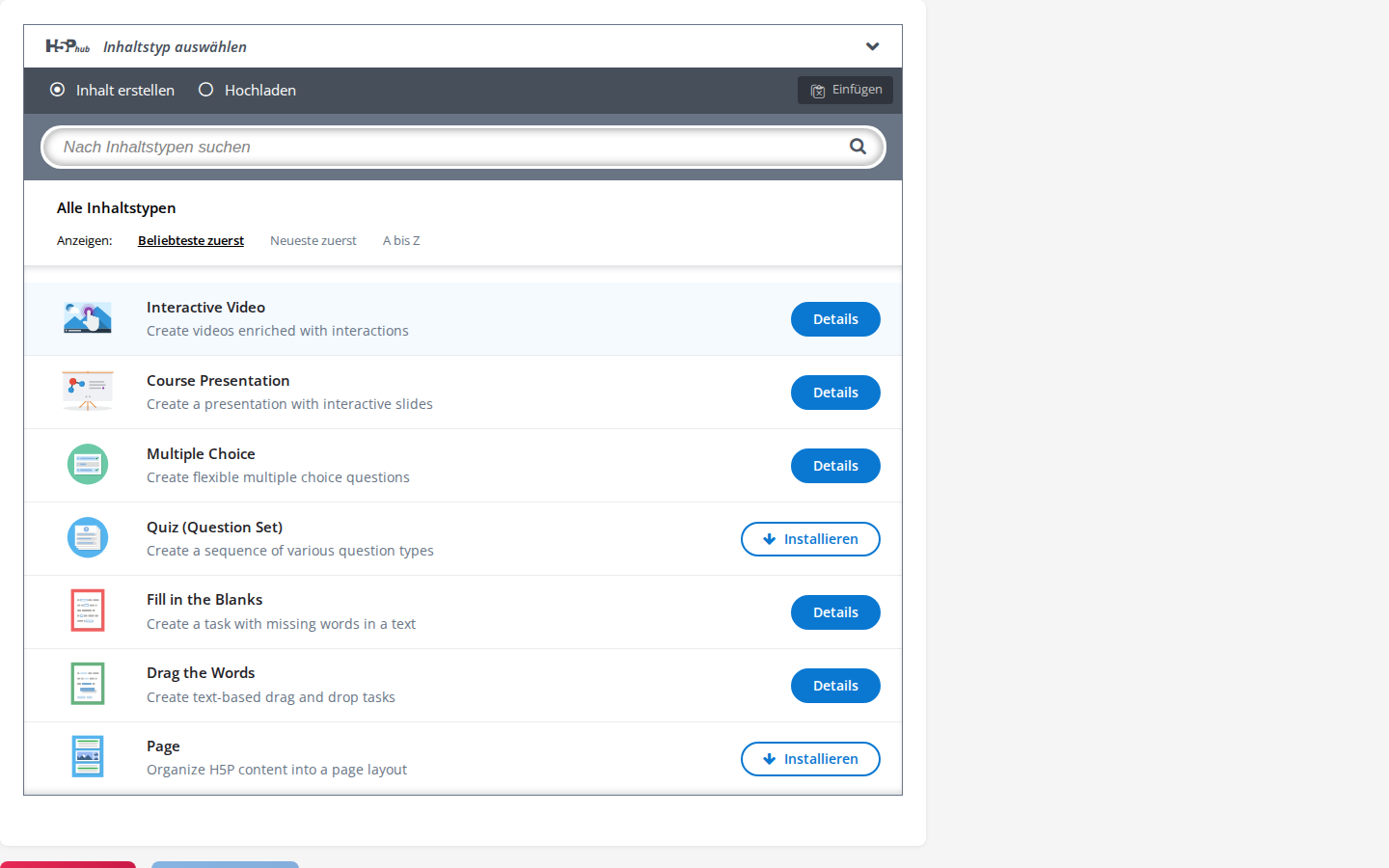
The H5P editor is connected to the official H5P Hub: in the content-type selection you'll find additional types (e.g. Question Set or Branching Scenario) and can install them directly from there — the editor fetches the type the first time you select it.
Creating an H5P content item
- Create a new lesson of type H5P in your course.
- Click Edit content — the H5P editor opens in its own browser window (it may take a moment to load on first access).
- Choose the content type in the editor.
- Design the content in the visual editor — every field is click-and-type, no code.
- Save — the window reports the content back to the lesson, and it is available immediately.
Example: Interactive Video
One of the most powerful H5P types — great for any kind of explainer video you want to enrich with comprehension checks.
- Lesson of type H5P → choose content type Interactive Video.
- Choose a video source:
- URL (YouTube, Vimeo)
- upload a video file directly in the H5P editor (the editor has no access to the platform's media library)
- Insert interactions at the desired points:
- show a multiple-choice question at a certain second
- a hotspot to an external link
- a text overlay with additional information
- an image overlay
- a summary quiz at the end
- Choose options:
- Does the video pause automatically at an interaction?
- Can learners skip interactions?
- Is a total score shown?
- Preview, adjust, save.
Screenshot to follow
Interactive Video editor with timeline and interaction markers
Tips from practice
- Import as an
.h5pfile — you can upload content from other platforms in the editor; missing libraries are installed automatically along with it. - For large content (Interactive Video with many overlays, Course Presentation with many slides) saving takes longer — wait for the confirmation message, don't click away in between.
- Test on mobile — many H5P types look different on tablet/phone than on desktop. Check in preview mode.
What learners experience
As soon as the lesson is saved, learners see the H5P content in the same place as a quiz or video. While working on it:
- The result counts at the end — the score achieved feeds into the lesson progress when the content is completed.
- No intermediate state: if someone leaves an H5P content item midway, they start from the beginning on the next visit. So split very long H5P units into several lessons instead.
Frequently asked questions
My H5P content won't play — the page stays blank. This usually indicates that the connection to the H5P server isn't working at the moment. Reload the page. If that doesn't help, contact your platform manager — they can check the H5P server status.
My Interactive Video doesn't load the right video. For external URLs (YouTube, Vimeo), check whether the video is still public and not restricted (e.g. to certain countries).
A content type is missing from the selection. Search for the type in the editor's content-type selection — types from the H5P Hub are installed automatically when you select them.
Can I import H5P content from another platform?
If it's available as an .h5p file: yes, import it in the H5P editor under Upload. You can download content from the H5P.org hub as .h5p and then upload it there.
How hard is H5P compared to classic quizzes? For simple quiz types (multiple choice, cloze) the native lesson types are faster. H5P pays off when you really want interactive things (hotspots in a video, presentations, memory games). Plan a little learning time for your first H5P content — after that it goes quicker.