Certificates and certificate templates
Certificates are the PDF confirmations your learners receive on course completion. This page explains how you control certificate issuance per course, which variants exist, and how the template system behind it works.
How the interplay works
Two levers determine who gets what:
- Per course: The switch "Issue certificate on completion" in the course form decides whether completing this course produces a certificate (default: on).
- Per company: Which template is used for it is set company-wide — via the template assignment in the document-templates area. If no custom template is assigned, the built-in default template applies automatically. So there's a certificate even without a custom template.
There is no "template per course" mapping — all courses of your company use the same (assigned or default) template.
Passed or participated — the two variants
The certificate automatically distinguishes two completion variants:
- Passed — the course contains at least one lesson with a minimum score (> 0), so learners had to clear a performance bar. The default certificate says "successfully completed and passed".
- Participated — the course has no enforced performance bar. The certificate says "participated".
In your own templates you control this via the placeholder {{ completion_type }} (see the table below).
Who edits templates
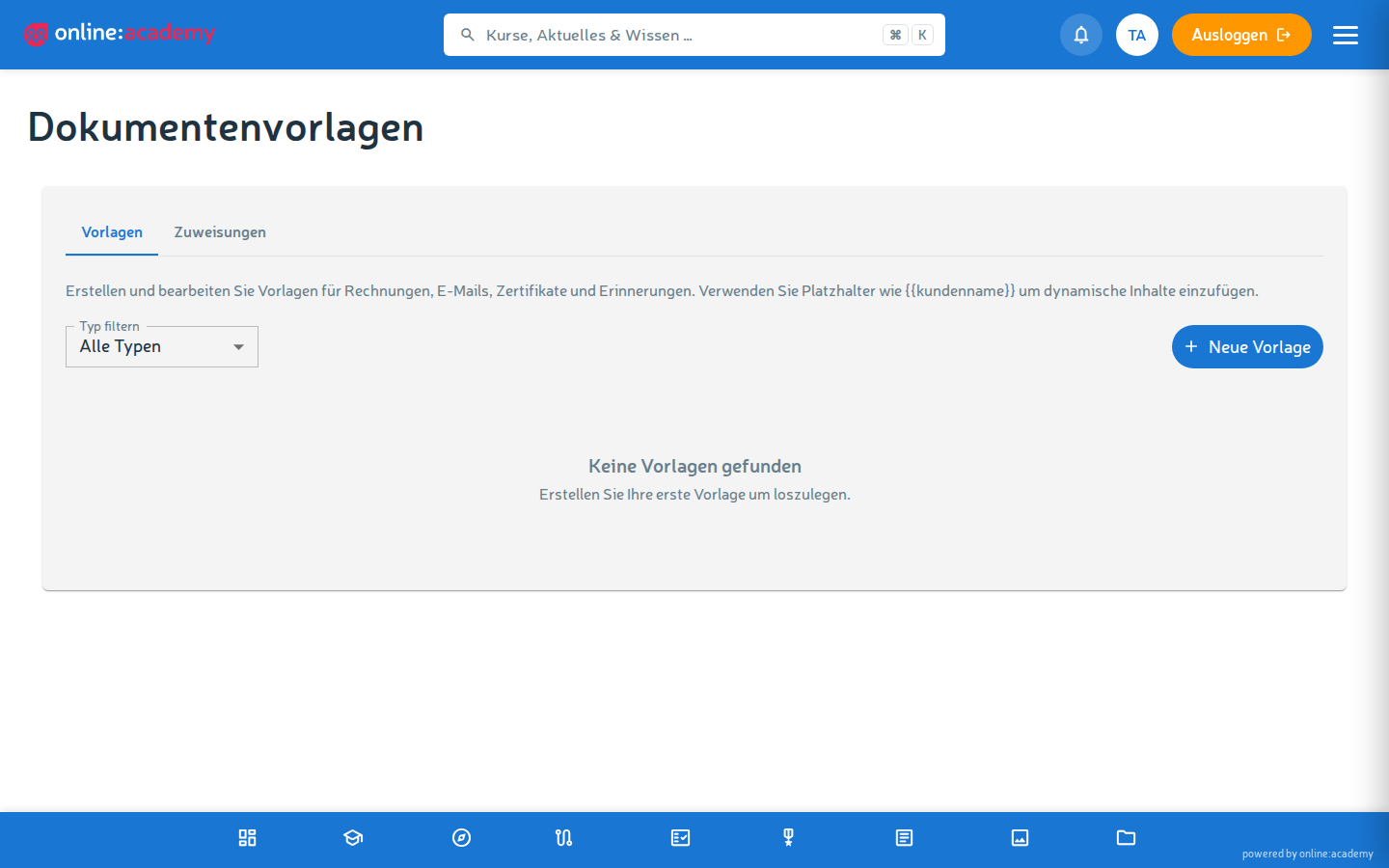
The templates area (Administration → Document templates) belongs to company administration — usable from the company admin role upwards. As a trainer, you only set the certificate switch on the course; pass layout wishes on to your admin. The complete guide to the template editor is in the administrator docs: Templates.
The essentials in brief: templates of type certificate are maintained in a rich-text editor (text, tables, colors, placeholder pills); the PDF is always generated in A4 landscape. It pays to duplicate the existing default template instead of starting from scratch.
Available placeholders
In the template you can use placeholders that are replaced with real data when the certificate is generated:
| Placeholder | What is inserted |
|---|---|
{{ user_name }} |
Full name of the learner |
{{ user_email }} |
Email of the learner |
{{ course_name }} |
Name of the course |
{{ course_description }} |
Course description |
{{ completion_date }} |
Date of completion |
{{ issued_date }} |
Issue date |
{{ score }} / {{ score_percent }} |
Score achieved in percent |
{{ completion_type }} |
Completion variant: "passed" or "participated" |
{{ company_name }} |
Name of the company |
{{ company_logo }} |
Company logo (inserted as an image) |
{{ verification_code }} |
Unique code for online verification |
{{ verification_url }} |
Full URL to the verification page |
{{ qr_code }} |
QR code for verification (inserted as an image) |
{{ assigned_by_name }} |
Assigning person (empty if no mandatory assignment is behind it) |
The notation is snake_case (with underscores). Image placeholders like {{ company_logo }} and {{ qr_code }} are automatically rendered as an image.
Example template text
                    Certificate

      {{ user_name }}
      has {{ completion_type }} the course

      «{{ course_name }}»

      on {{ completion_date }}
      (score: {{ score }}).


      ___________________________
      {{ company_name }}

      Verification: {{ verification_code }}
      {{ qr_code }}
Validity and expiry
Whether a certificate expires depends on the course's repetition requirement: if the course has a repetition interval (e.g. a yearly compliance training, see Mandatory assignments), the certificate automatically gets a matching "Valid until" date. Without a repetition interval, the certificate is valid indefinitely. There is no separate validity setting in the template.
After expiry:
- The verification page reports the certificate as expired
- If the person completes the course again, their existing certificate is refreshed — new date, new score, same verification code
Testing a template
Before the first productive use, the built-in preview is worth it: it generates a sample PDF with test data. Check visually:
- Are all placeholders correctly replaced? (An unknown placeholder is marked in red in the preview)
- Does no text run over the edge?
- Logo well placed and sharp?
Frequently asked questions
My logo is rendered blurry. Store the logo in a higher resolution in the branding — as PNG or SVG.
A placeholder is not replaced and appears literally on the PDF.
Check the notation — certificate placeholders are snake_case ({{ user_name }}, not {{ userName }} or {{ studentName }}). Unknown placeholders are marked in red in the preview.
A template should apply to many courses — how efficiently? That's the normal case: the company-wide assigned template automatically applies to all courses. Later changes to the template take effect for all certificates issued in the future.
What happens to existing certificates when the template is changed? Already issued certificates remain unchanged (the PDF is generated and stored). Only newly generated certificates use the changed template.
Can I use different templates for different languages? Exactly one certificate template is effective per company — different templates per course or per language are currently not possible. Multilingual companies are best served by wording the template bilingually.
Can I create a certificate manually / issue one afterwards for someone who did the course offline? Currently not directly in the UI. The person can complete the course online — on completion the certificate is created automatically (provided it's activated on the course).