Creating a course
Here's how to create a new course, which you then fill with lessons and finally activate for learners.
Creating a new course
Courses always live in a catalog (e.g. "Sales", "Compliance"). That's why the route goes through the catalog view:
- In the main navigation under Administration, switch to Course management.
- Open the catalog in which the course should appear.
- Click New course.
- Fill in the fields (see below) and Save.
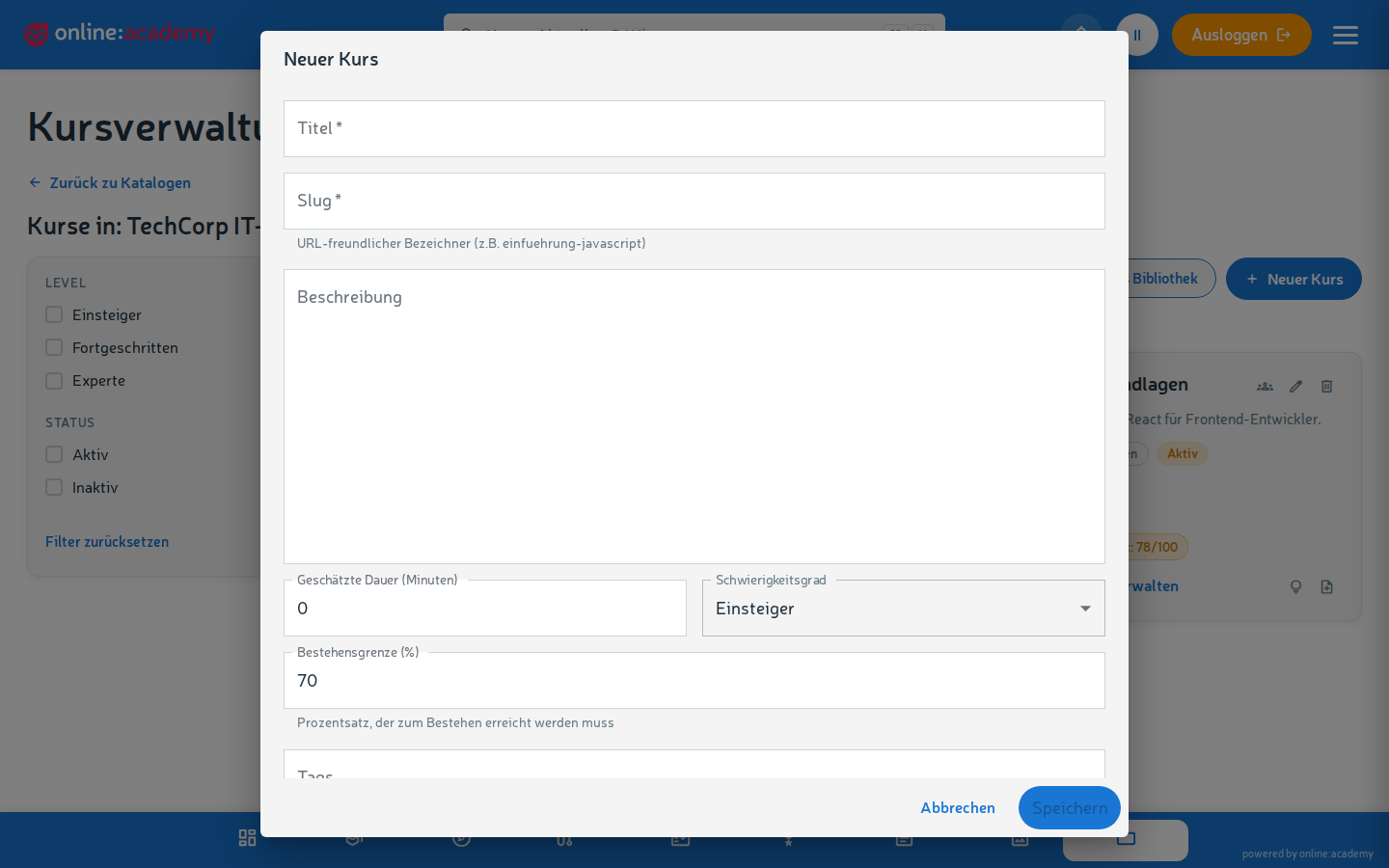
Newly created courses are active immediately
The Active toggle is switched on by default when creating a course. A saved course therefore appears in the learners' catalog right away (in the default enrollment mode without an enroll button, but visible). If you want to build lessons in peace first: switch off Active before saving.
Which fields you fill in
Mandatory fields
| Field | What belongs here |
|---|---|
| Title | Meaningful, unambiguous — learners see it in the catalog |
| Slug | The course's URL shorthand — suggested automatically from the title, you can adjust it |
Recommended fields
| Field | What for |
|---|---|
| Description | What it's about, what you learn, who the course is for (~1-3 paragraphs) |
| Difficulty level | Beginner / Advanced / Expert — helps learners choose (default: Beginner) |
| Estimated duration | Gives learners a realistic expectation |
| Passing threshold (%) | Purely informational for learners. It is not enforced — whether a lesson must be passed is controlled by the minimum score of the individual lesson (see Quizzes and grading) |
| Sequential yes/no | Must lessons be done in the given order? |
| Enrollment mode | Who is allowed in? See the next section |
| Tags | Keywords — feed into the course recommendations for learners |
| Issue certificate on completion | Controls whether learners receive a certificate on completion — details under Certificate templates |
Choosing the enrollment mode
Who is allowed to enroll in your course?
| Mode | Behavior |
|---|---|
| Self-enrollment allowed | All eligible users see the course in the catalog and can enroll themselves |
| Request enrollment | Learners submit a request, and you or a content manager approves it |
| No self-enrollment (default) | The course appears in the catalog but has no enroll button — learners see the note "Contact your point of contact". Access is only via direct enrollment or a mandatory assignment (often used for mandatory training) |
You can change the mode at any time later.
Sequential vs. freely navigable
- Sequential: learners must go through the lessons in order. The course player only unlocks a lesson once the previous one is completed. Makes sense for content that builds on itself (e.g. a programming tutorial).
- Freely navigable: learners may jump wherever they want. Makes sense for reference content or a loose bundle of topics.
Setting prerequisites
If your course requires prior knowledge that other courses provide, you can mark those as a prerequisite. Prerequisites are not maintained in the course form but in a dedicated area:
- In the main navigation, switch to Prerequisites.
- Click Create, choose your course and the prerequisite course.
- Set the type:
- Mandatory — learners who haven't completed the prerequisite course cannot enroll; they are pointed to the prerequisite course.
- Recommended — learners see a warning when enrolling but can continue with "Enroll anyway".
Activating and deactivating a course
There is no separate draft status — visibility is controlled by the Active toggle:
- Active — the course is visible in the learners' catalog (the catalog itself must also be active), and depending on the mode learners can enroll.
- Inactive — the course disappears from the catalog and from "My courses" of already enrolled learners. In Course management it remains visible and editable for all course managers of your company.
Important: an active course can still be edited. But: restructuring lessons while learners are working on the course can be confusing. Better to do major overhauls on an inactive course, during a quiet period, or with a brief note in the description.
Next steps
After creating the course shell, continue with the content:
Once the lessons are in place, it pays to:
→ AI quality check — run an automatic diagnosis before release → Certificate templates — if the course should have a completion certificate
Frequently asked questions
Can I deactivate an active course again? Yes — it then disappears from the catalog and for new enrollments. Caution: already enrolled learners then no longer see the course under "My courses" either. If active learners should still finish the course, hold off on deactivating.
How do I delete a course? In Course management via the delete icon on the course. This is an archive: the course disappears from all lists, but certificates already issued are kept and statistics are not changed. Enrollments and progress are not deleted.
Can I duplicate a course? Yes, via the library: click the library icon on the course ("Save to library"), then choose From library in the target catalog — the course is inserted as an independent copy including its lessons. This also works across catalogs.
Can I hand a course over to my colleagues for co-editing? Multiple authorship is currently not supported in the UI — but all course managers of your company see and edit the company's courses in Course management. Pragmatically: one person takes the main responsibility, and agreements are made within the team.