Learning groups
Learning groups are spaces where several learners can exchange ideas about their courses — ask questions, post answers, motivate each other.
Learning groups are created by your company's administrators. You can join public groups yourself or be added to a group by a group admin.
Finding and joining a learning group
- Go to Learning groups — e.g. via the learning-groups widget on your dashboard.
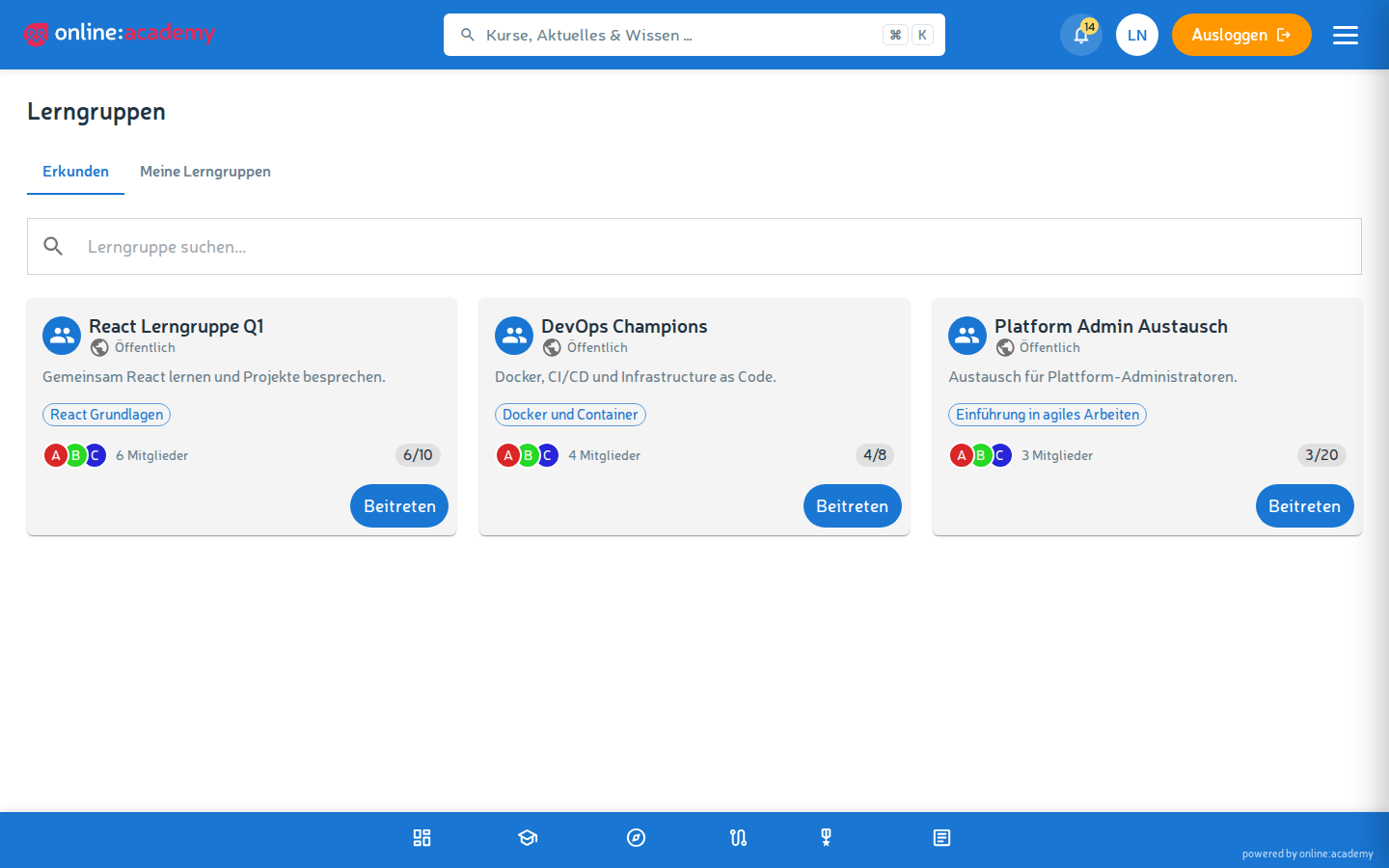
- In the Discover tab you see all public groups of your company; use the search field (magnifier) to find groups by name.
- For an interesting group, click Join — you're in immediately.
- In the My groups tab you'll find all groups you're a member of.
For private groups, self-joining is not possible — a group admin adds you. As soon as that happens, you get a notification at the bell and the group appears under My groups.
Working in a group
The core of every group is the group chat:
- Write messages to all members
- Ask questions, post answers
- Share links and tips
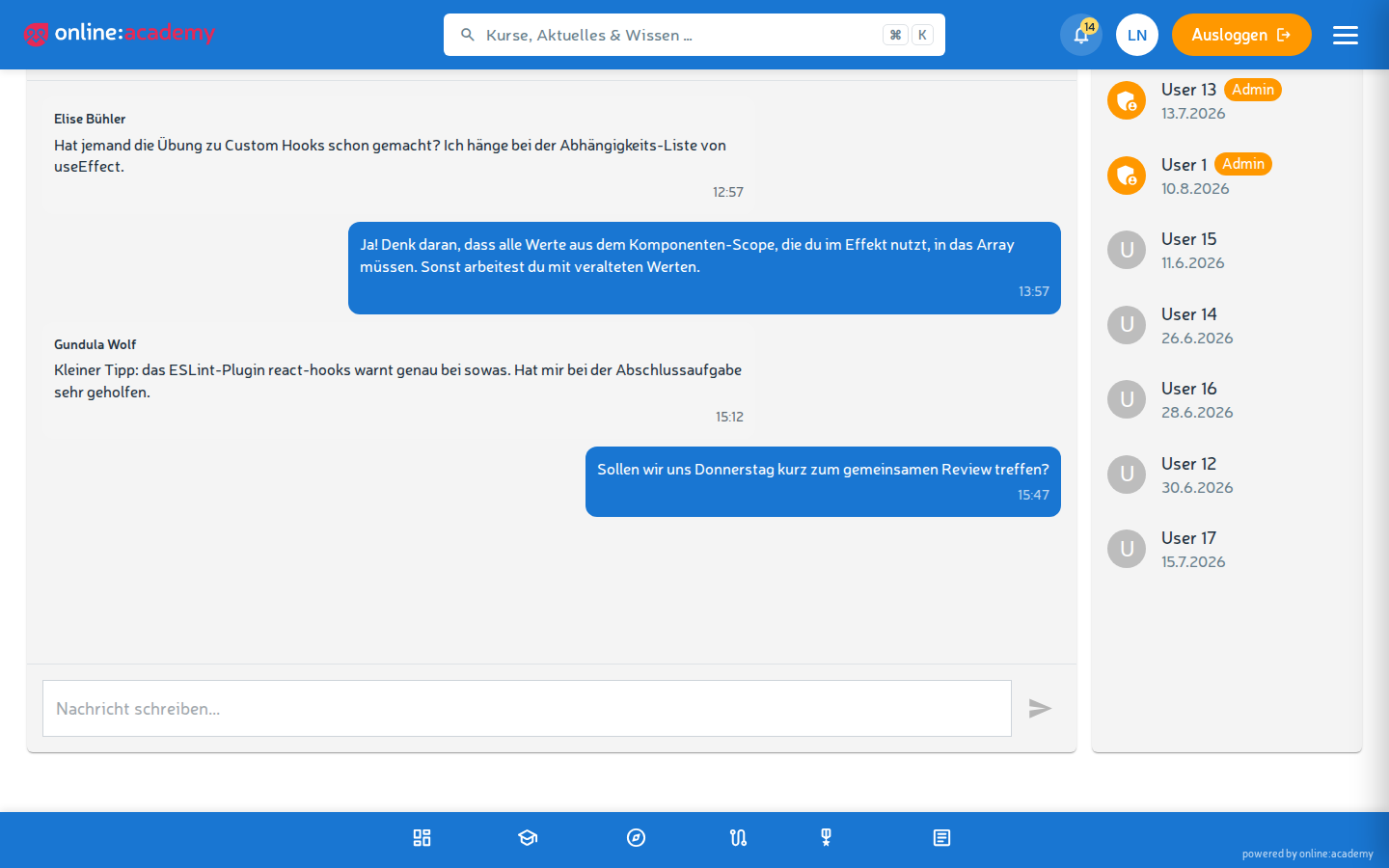
Alongside it you see the group's member list.
Tip: You see new messages when you open the group — there is currently no automatic notification for new chat messages. So check in on your groups regularly.
Leaving a group
You can leave at any time: in the group or on the group card, click Leave and confirm the prompt.
- For public groups you can simply rejoin later.
- For private groups a group admin has to add you again.
Frequently asked questions
Do other members see my learning progress? No — the group only shows the chat and the member list. Your course progress is not visible to other members.
Do I get a notification for every new message? No — you see new chat messages when you open the group. You only get a notification when you're added to a group.
Can I meet people from other companies in my group? No — learning groups are limited to your own company, even public ones.
What happens to messages when the group is deleted? Everything's gone — chat history, memberships, group settings. Only group admins and administrators can delete groups.