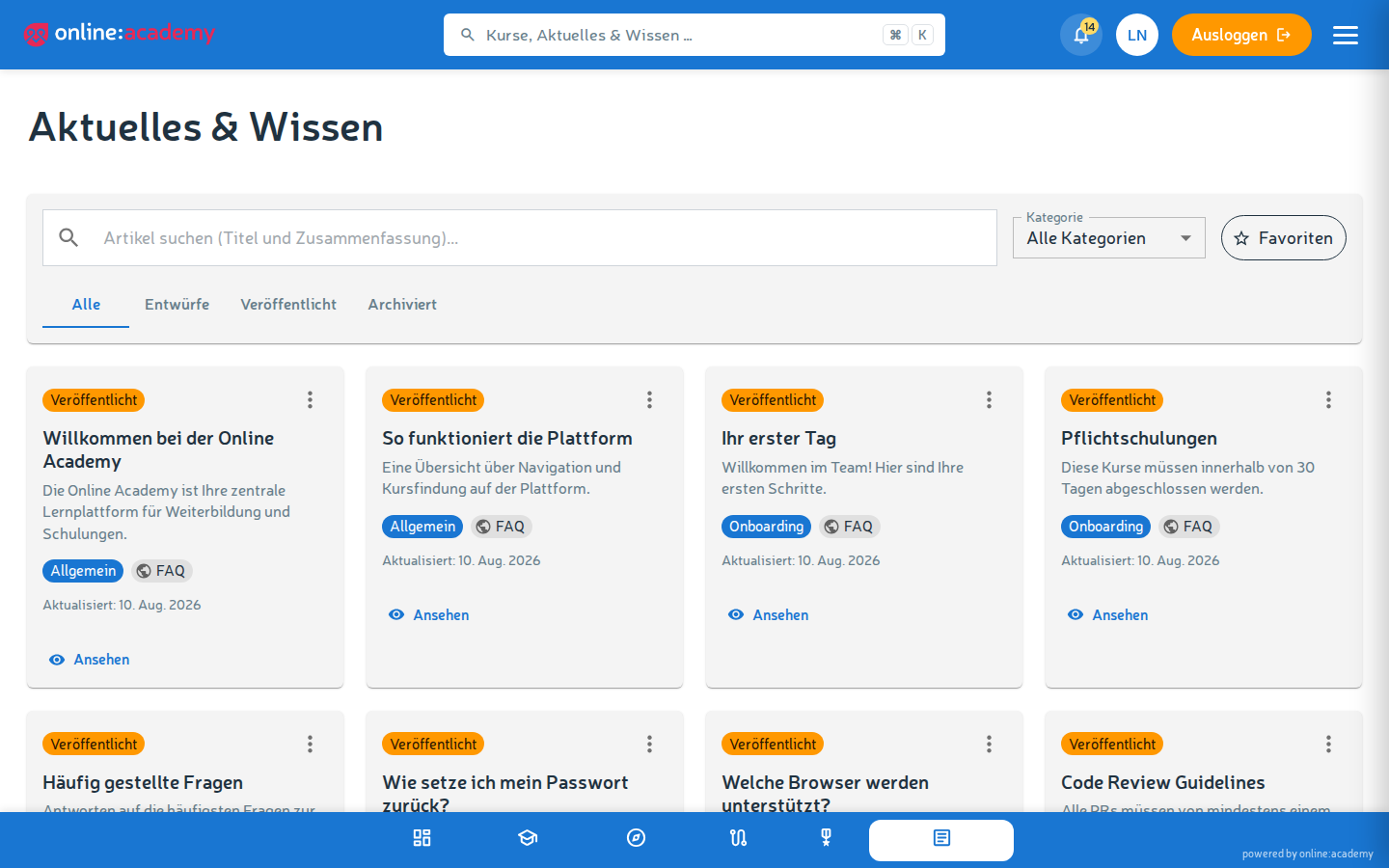
The Wiki
The wiki is your company's knowledge base — internal documentation, process descriptions, FAQ collections, guides, glossaries. You can read, comment, set favorites, and — depending on your permissions — also write your own articles.
Where you find it
In the navigation and on the learning-portal tile, this area is called "News & Knowledge".
Finding content
- Go to the knowledge base in the main navigation.
- Three ways to find an article:
- Full-text search in the header — searches through all articles
- Category tree in the sidebar — click through by topic
- Filters — by category, author, creation date, tags
Screenshot follows
Wiki overview with full-text search and category tree
Reading an article
- Table of contents on the right edge — helpful for navigation in long articles
- Favorite star — marks the article for quick re-access via your bookmarks
- Print / PDF export — save the article as a PDF or print it directly
- Share — copy the link and paste it into a chat or email
- Write a comment — discuss or ask questions at the end of the article
Comments
- Reply to your own or others' comments
- Mention people with
@name— they get a notification - Edit or delete your own comments later
Writing your own article
Whether you may create articles depends on your role. If that applies to you, you'll see a New article button on the wiki overview.
- Click New article.
- Fill in the required fields:
- Title — precise and meaningful
- URL slug — automatically generated from the title, you can adjust it
- Category — thematic placement in the category tree
- Tags — keywords that help find the article later
- Compose the content in the rich-text editor:
- Headings, bold/italic, lists, task checkboxes
- Tables, code blocks, embedded videos
- Insert images from the media library
- Links to other wiki articles, courses or external URLs
- Choose a status:
- Draft — only you see the article
- Published — everyone with read permissions sees it
- Archived — hidden, but still reachable by direct link
- Save.
Screenshot follows
Wiki article editor with rich-text toolbar
Versioning
Each save automatically creates a version snapshot. Below the article there's a Versions tab:
- List of all versions with timestamp and author
- Diff view between two versions — what was changed and when
- Restore an old version (creates a new version, the old one is preserved)
Handy if you accidentally broke something — you can simply roll back the previous version.
Frequently asked questions
I can't find a "New article" button. You don't have write permissions for the wiki. In most companies, trainers, content managers and editors may create articles. If you think you should have write permissions, talk to your trainer or the person responsible for platform administration.
My article doesn't appear in the search. It's possible you saved it as a "draft" — that's only visible to you. Set the status to "published", then others will find it too.
Can I read articles from another company? No — wiki articles are limited to your company. One possible exception is articles explicitly marked as "public", which can also be read from outside via a direct link.
What happens to old versions when an article is deleted? Everything is deleted along with it. If you want to save an important version, export it as a PDF beforehand or copy the content into a note of your own.
Can I read articles offline? Via PDF export: yes. There is no offline mode directly in the web application.