Getting Started
Here's how to find your way around online:academy as an administrator and get an overview of managing your company.
Signing in
Like every other user, you receive an invitation email. Click the link and set your password. Your account is marked with an administrator role (e.g. Company Admin); that's what makes the additional administration areas visible to you.
The two interfaces
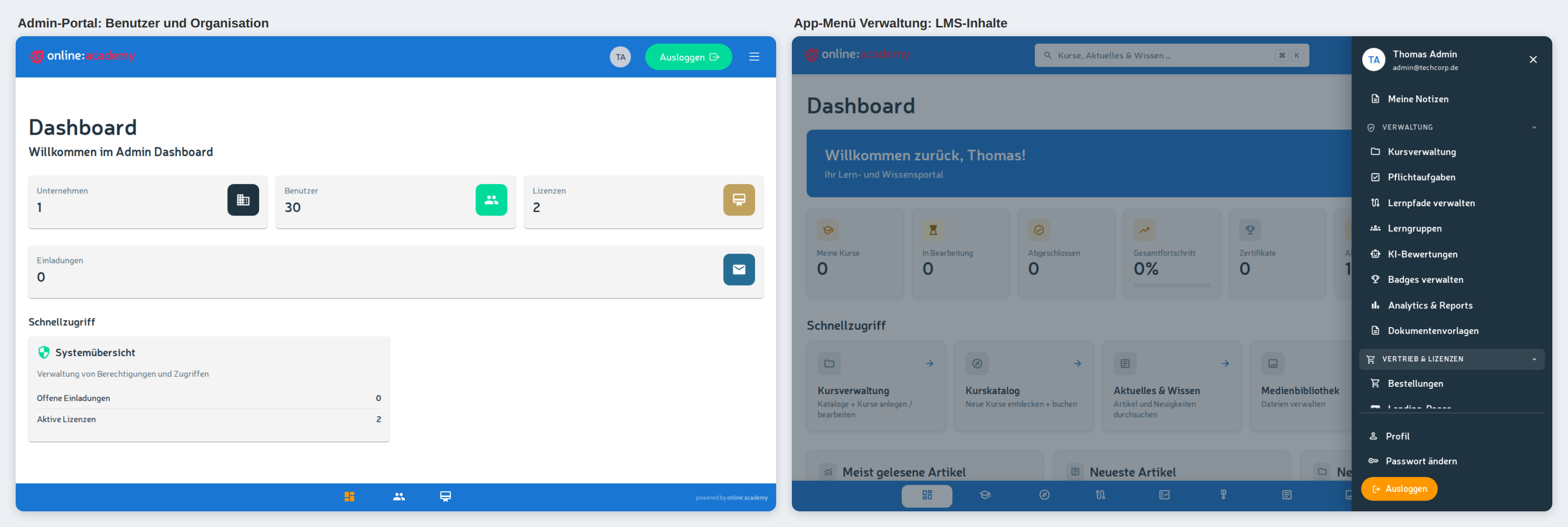
As an administrator you work with two interfaces — depending on the task:
| Interface | What for | Examples |
|---|---|---|
| Admin Portal | User and company administration | Users, invitations, organization settings (departments, user groups), branding, documents |
| App → "Administration" menu | Learning administration | Course management, mandatory assignments, learning paths, learning groups, Analytics & Reports, document templates |
| App → "Sales & Licenses" menu | Sales and course licenses | Marketplace, licensed courses, orders, landing pages, payment settings |
Where is what?
Every guide in this area states at the top where the feature lives. Rule of thumb: if it's about people and your company, you're in the Admin Portal. If it's about learning and sales, you're in the app.
Completing your profile
- Avatar in the top right → Profile.
- Check your name, upload a photo.
Others see your photo + name, for example when you assign them a mandatory assignment.
What you steer as an administrator
Unlike a learner or a trainer, you have access to the whole company — not just to individual courses. Your core tasks:
- Users & access — invite people, assign roles, archive accounts, keep an eye on the license status. See Managing users, Roles and permissions, Licenses and access.
- Setting up the company — master data, departments, branding, a custom domain if applicable. See Company and branding.
- Steering learning — assign mandatory assignments, manage learning groups. See Assigning mandatory assignments, Managing learning groups.
- Reporting — monitor progress, pull reports and analytics. See Team progress, Reports and export, Analytics and reporting.
- Content & sales — maintain templates, marketplace and orders. See Templates, Marketplace and commerce.
There is no 'My team' view
The platform has no fixed "manager-team" assignment. As an administrator you generally see everyone in your company. To look at a specific group, filter in the overviews (mandatory assignments, analytics) by department, or use learning groups as cohorts.
Creating structure: departments and learning groups
Before you get going, some structure pays off:
- Departments and user groups organize users along organizational lines (e.g. "Sales", "Onboarding May 2026"). They're the basis for targeted bulk assignments and filtered reporting. See Company and branding.
- Learning groups are exchange spaces with a group chat for cohorts that learn together. See Managing learning groups.
What you as an administrator do NOT do
A clear demarcation from other roles:
- Creating courses — that's done by trainers / course creators (see the trainer docs). You can of course hold that role in addition.
- Platform-wide configuration (cluster, domains on the technical level, company-group linking) — that's done by the platform team (Operator).
Typical tasks in your role
- Onboarding new employees — invite them, assign a role and department, set the entry learning path as a mandatory assignment.
- Assigning recurring mandatory trainings — e.g. data protection, fire safety, compliance (with repetition).
- Regularly checking learning status — who is on track, who is behind (see Team progress).
- Pulling reports for personnel files or compliance evidence.
Help & support
- This collection of guides — Index
- FAQ for administrators
- For technical problems: contact your platform team / your point of contact