The course player
The course player is your learning interface. As soon as you open a course, you land there.
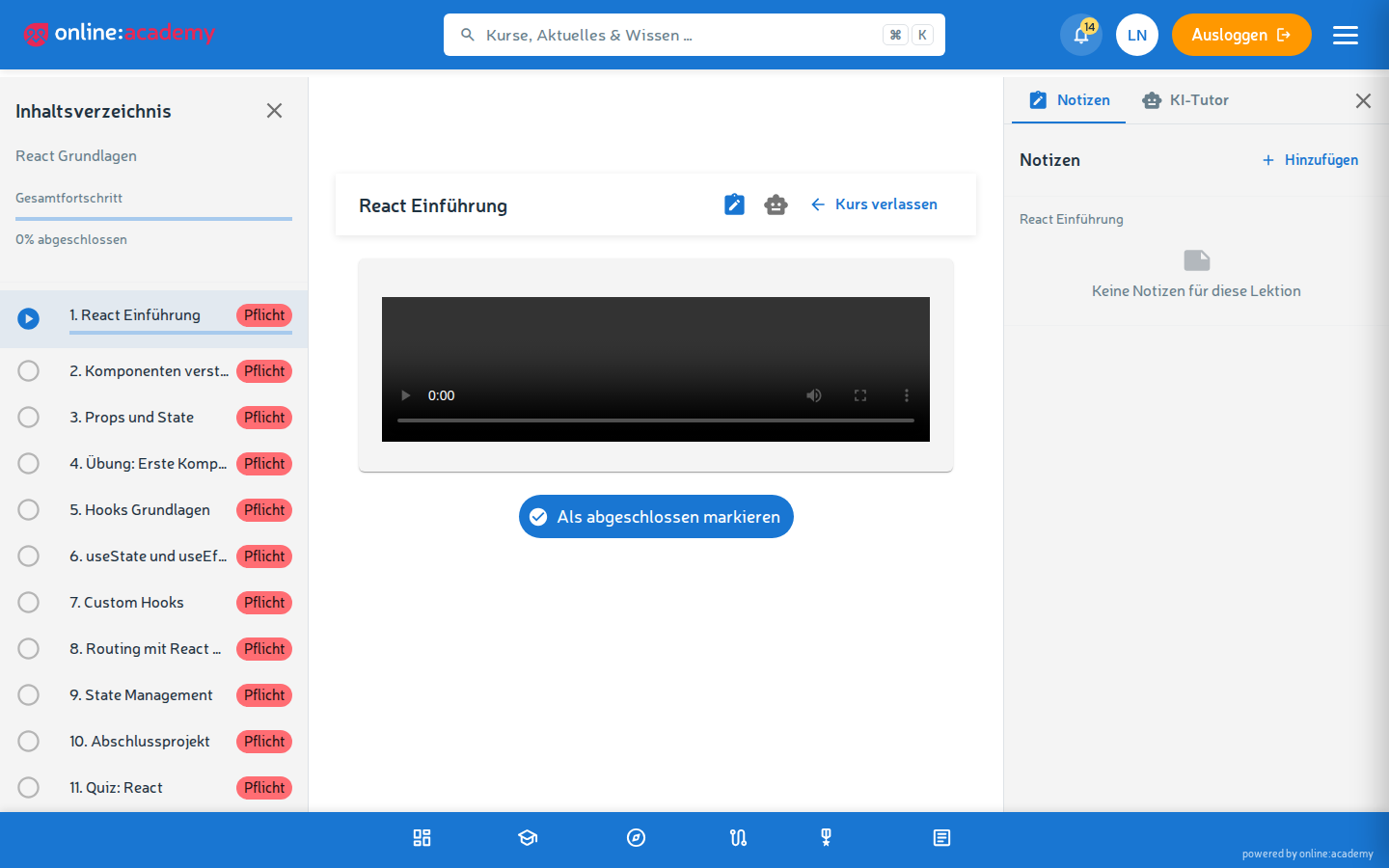
Layout of the interface
| Area | What you find there |
|---|---|
| Lesson list on the left | All lessons of the course with a status icon |
| Content in the center | The currently opened lesson |
| Progress bar at the top | Where you stand in the course |
| Forward / back buttons | Navigation between lessons |
| Drawer on the right | Tabs for notes and the AI Tutor |
The status icons in the lesson list tell you at a glance where you stand:
| Icon | Meaning |
|---|---|
| Green check | Lesson completed |
| Blue play icon | Lesson in progress (with progress bar) |
| Gray | Not yet started |
| Lock | Course is sequential, previous lesson still missing |
Working through a lesson
A lesson can have different content types:
| Type | What happens |
|---|---|
| Video | Play the video, accompanying text alongside |
| Document | Display a PDF, download it if applicable |
| Info text | Plain text content to read |
| Multiple choice | Quiz question with answer options |
| Free text | Open question, AI-assisted grading |
| Cloze text | Text with words to fill in |
| Matching | Pair terms correctly |
| Drag-and-drop | Sort or place elements |
| Hotspot | Image with clickable areas |
| Timeline | Order events chronologically |
| H5P content | Interactive learning content (quiz, presentation, game …) |
| SCORM | External learning unit |
When you're done, click Next — the system automatically marks the lesson as completed, provided there's no open task left in it.
Quizzes and grading
For quiz lessons, after submitting you see:
- Your score (e.g. 7 out of 10)
- Which answers were correct / incorrect
- The minimum score you need to reach to pass
You can repeat lessons — the best score counts toward your progress.
The right-hand drawer
Click the arrow on the right or the icon to open the drawer. Two tabs:
- Notes — your own annotations for the current lesson → see Notes
- AI Tutor — clarify questions about the material (only visible if the tutor is enabled for the course) → see Using the AI Tutor
The drawer stays open until you actively close it again — perfect for taking notes alongside while learning.
Frequently asked questions
I've gone through all lessons, but the course still isn't "completed". Check whether you reached the minimum score in every quiz lesson. A lesson with 4 out of 10 points doesn't count as completed, even if you submitted it. Repeat it and try to reach more points.
A lesson is marked with a lock. What do I do? The course is built sequentially — you have to complete the previous lesson first, then the next one opens. The lock hint links directly to the lesson that is still missing.
Can I skip lessons? For sequential courses, no. For open courses, yes — but then only the progress of the lessons actually completed counts.
The video won't play / the H5P content won't load.
Reload the page (F5). If that doesn't help, check your internet connection. If the content is still missing, contact your trainer — a file may have failed during upload.