Managing Users
As the administrator of your company, you decide who gets access to online:academy, what role a person has, and which department they belong to. This page shows you how to invite people — individually or as a whole list — and how to maintain existing users.
Where this happens
You manage users and invitations in the Admin Portal — that's the separate administration interface, not the regular learning app. Topics like mandatory assignments, learning paths, or analytics, by contrast, live in the app under Administration.
Inviting a single person
The quickest way to onboard a new colleague:
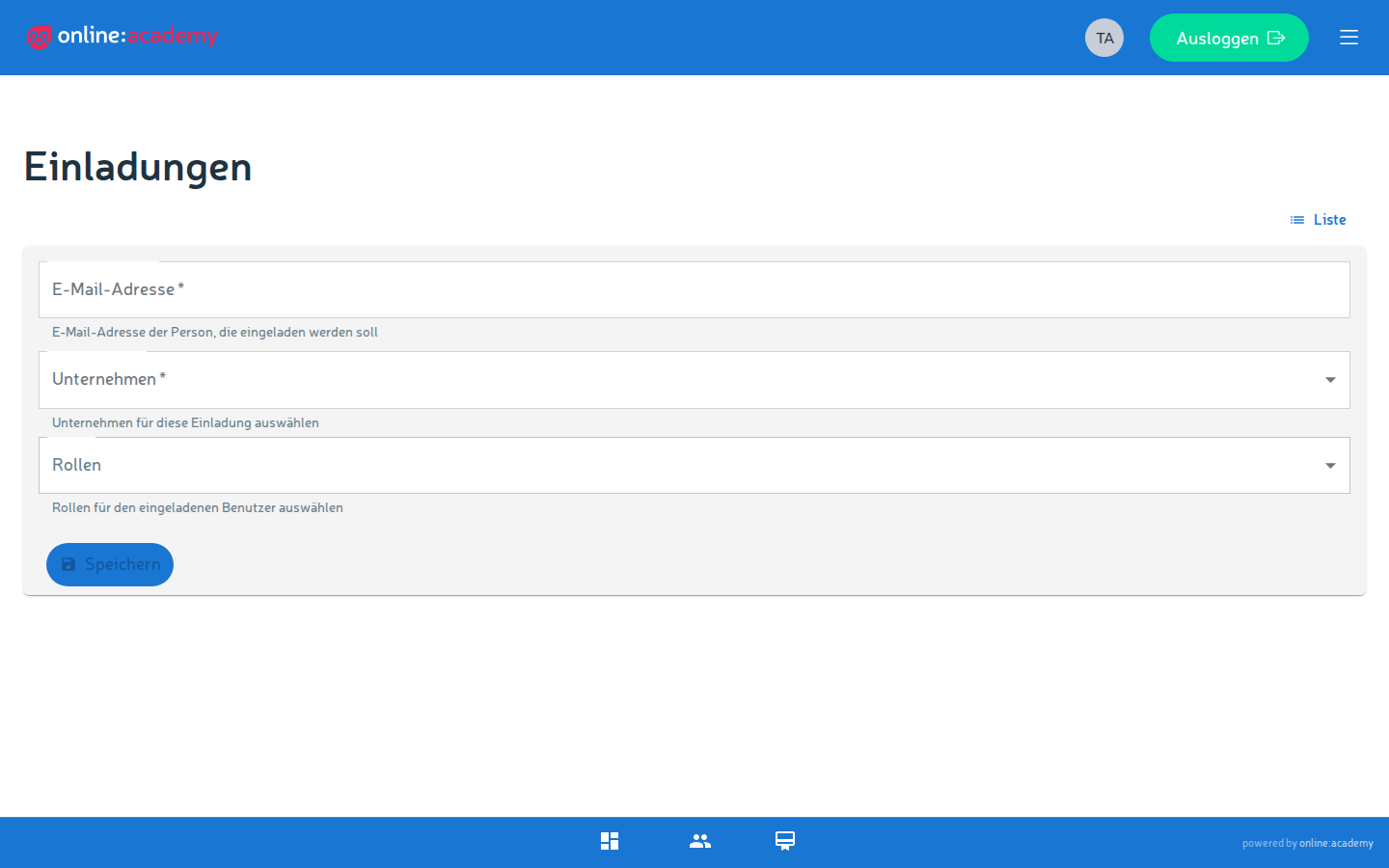
- In the Admin Portal, switch to Invitations.
- Click Create.
- Fill in the fields:
| Field | Required | Note |
|---|---|---|
| yes | The address the invitation is sent to. There can only ever be one open invitation per address — a new one replaces the old. | |
| Company | yes | As a company admin, only your own company is available here. |
| Roles | no | What the person is allowed to do. You can only assign roles that are below your own (see Roles and permissions). Without a role selection, an account without special permissions is created — for learners, include the Student role. |
- Save — the system sends an email with a personal registration link.
The invited person does not choose the department themselves — admin invitations ask for it during registration; for everyone else, you assign it afterwards on the user (see below).
How long is the invitation valid?
The registration link is valid for 7 days by default and works exactly once. If it expires, simply invite the person again.
Inviting many people at once (CSV import)
If you want to onboard an entire team, the bulk invitation by file is worthwhile:
- In the Admin Portal, go to Invitations → Import CSV.
- Upload a CSV file. Format:
- One email address per line
- No header row, no additional columns
- Optional: choose the role(s) all invited people should receive — only roles below your own are offered.
- Start the import.
After the import, the system tells you how many invitations were created, how many rows were skipped (invalid email addresses), and whether there were any errors. Addresses that already have an open invitation get a fresh invitation (the old one is replaced).
Tip for the CSV file
A spreadsheet application like Excel or LibreOffice cleanly exports a single column of addresses as CSV. Make sure to remove any header row (e.g. "Email") before exporting — and that each address appears only once in the file.
Direct creation instead of invitation
Under Users there are additionally Create and a separate CSV import — both create accounts directly with a password, without an invitation email. This is meant for special cases (e.g. test accounts); the normal path for real employees is the invitation, where the person sets their own password.
What happens when the invitation is accepted
The invited person receives an email with a link. When they click it, they land on a registration page and fill in the following themselves:
- Required: first and last name, password (at least 12 characters)
- Optional: phone, address, job title, preferred language
After submitting, the account is active, the roles from the invitation are applied, and the person is redirected to sign in. From then on they can get started — a getting-started guide is available under Getting Started for Learners.
Screenshot to follow
Registration page the invited person sees after clicking the link
Editing an existing user
Has a person's data or role changed? You maintain that directly on the user:
- In the Admin Portal, go to Users.
- Find the person in the list (by name or email) and open them.
- Adjust whatever is needed:
| What | How |
|---|---|
| Change role | Select a new role — again only roles below your own. Details under Roles and permissions. |
| Department / user groups | Assign the person to a department and any number of user groups. User groups are handy for bulk actions (e.g. bulk mandatory assignments "By group"). |
| Master data | Correct name, contact details, and profile fields. |
- Save.
A role change takes effect after signing in again
If a person's role changes, they should sign out and back in once so the new permissions take full effect.
Archiving / deactivating vs. deleting
When someone leaves the company or temporarily no longer needs access, there are two very different paths:
| Action | What happens | When it makes sense |
|---|---|---|
| Archive / deactivate | The person can no longer sign in. But their data — completed lessons, learning progress, certificates — is retained. | The standard case: a person leaves but the records should stay documented. |
| Delete | All personal data of the account (name, email, contact details, profile picture) is anonymized and access is permanently blocked. The email address becomes free again and can be used for a new account. | Only if the personal data really has to be removed (e.g. a data-protection request). |
When in doubt, archive rather than delete
Archiving is almost always the right choice: access is revoked immediately, but certificates and learning history are not lost. Deleting cannot be undone — name and contact details are permanently anonymized afterwards. Think beforehand about whether records (e.g. for training obligations) are still needed.
Relationship with licenses
Course access depends on your company's license, not on personal license seats: if someone doesn't see a licensed course, it's usually because the company license has expired or the course's seat quota is used up (seats are used automatically on enrollment). Details under Licenses and access.
Maximum number of users
Depending on your contract, your company may have a cap on the number of users. It counts all created accounts — archived ones included. Once the cap is reached, the only remedy is an increase via the platform team.
Frequently asked questions
The invited person didn't receive an email. Please have them check the spam folder first. If nothing arrives, invite the person again — this generates a fresh link. Make sure the email address is spelled correctly.
The invitation link says "expired" or "already used". Links are valid for 7 days and can only be used once. Simply invite the person again. If they've already registered successfully, they should just sign in normally instead.
I can't select a particular role. You can only assign roles that are below your own. Higher roles must be assigned by a person with the corresponding permissions — see Roles and permissions.
An archived person should regain access. Find them in the user list (archived accounts are shown there as well) and click Reactivate — after that they can sign in again.
Related pages: Roles and permissions · Licenses and access