Leading learning groups
A learning group bundles several learners who learn together — e.g. a cohort for your course, a training class year, or a training wave. The core of the group is the group chat: a shared space for questions, notices, and mutual motivation.
Org-wide instead of for your cohort?
This guide is tailored to your groups and courses. If you manage learning groups across several trainers or departments, take a look at the administrator guide: Managing learning groups org-wide.
When a learning group is worthwhile
- A shared learning journey — a cohort goes through the same course at the same time and exchanges in the chat
- Mutual motivation — questions, tips, and praise reach everyone at once
- Short-form communication — notices like "new lesson available" or "please finish before Friday" to everyone
If you just want to give a single person a course as binding, you don't need a group — assign a mandatory assignment directly.
Where to find learning groups
In the main menu under Administration → Learning groups. The area is visible from the trainer role upwards.
Creating a learning group
Groups can be created by content managers and company admins — as a plain trainer you won't see the create button. In that case, ask your content manager to create the group and set you as group admin — after that, you manage members and chat yourself.
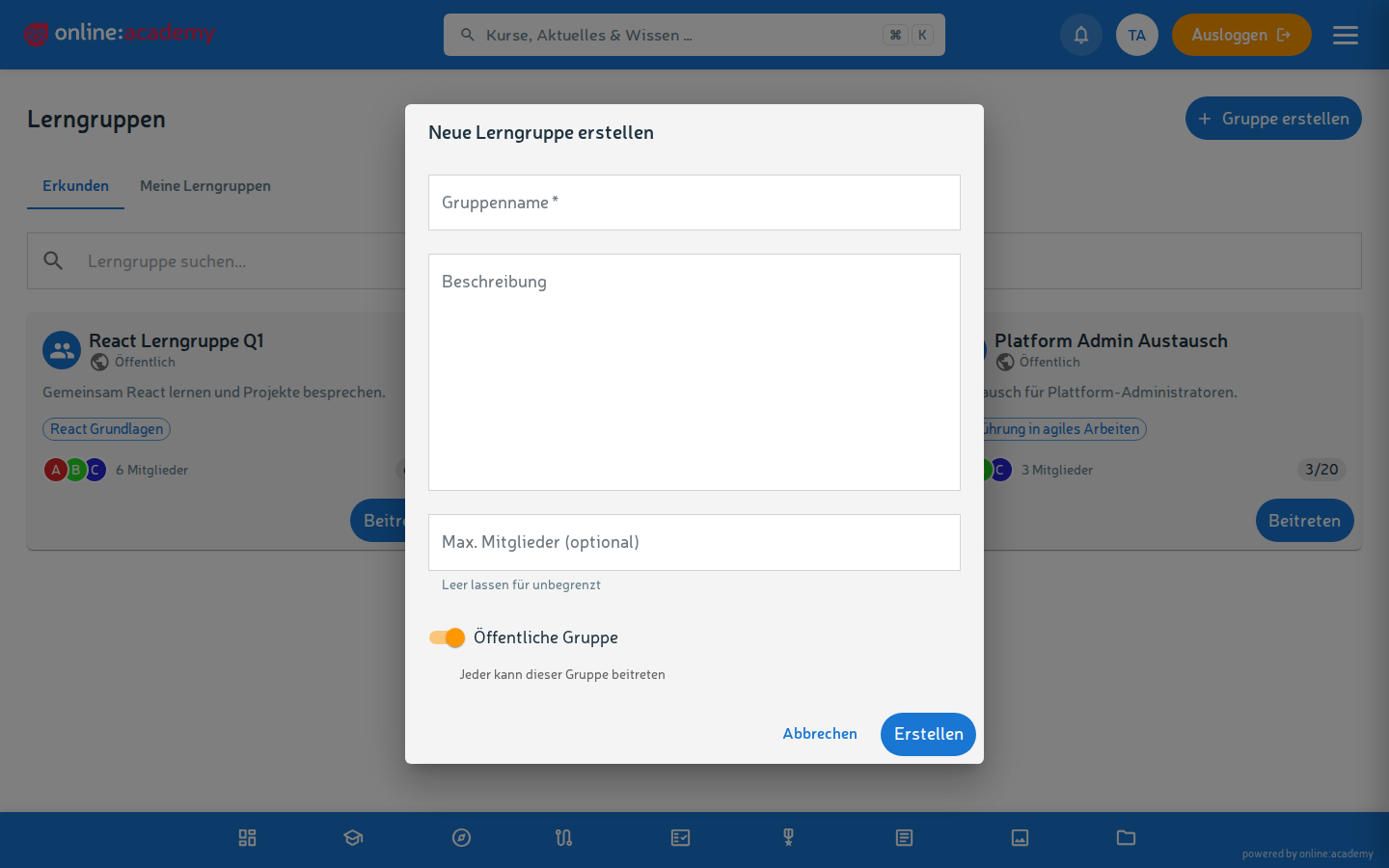
The creation dialog (Create group) has these fields:
| Field | What you enter |
|---|---|
| Name | e.g. "Onboarding Q1 2026" or "Course XY – Spring cohort" |
| Description | Purpose, target group, time frame |
| Maximum members (optional) | For fixed cohort sizes |
| Public group | On by default — everyone in the company can see the group and join it themselves. For supervised cohorts, turn the switch off (private group): then members only get in by being added |
Adding members
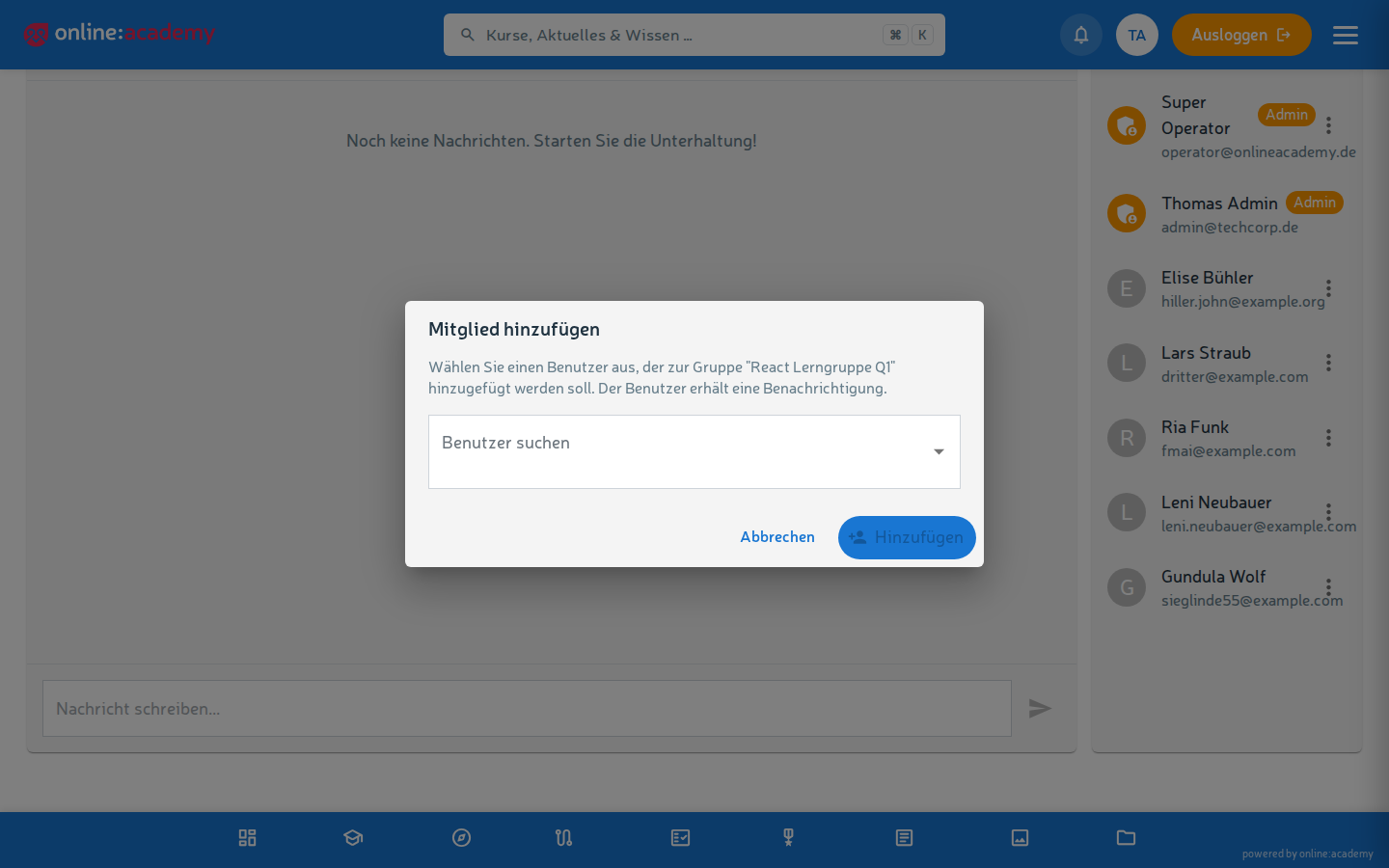
- Open the group — the member list sits next to the chat.
- Click Add member.
- Select the person via search (one person per operation; repeat for a whole cohort).
- The person receives a notification that they belong to the group.
The people don't need to actively "join" the group — by being added, they're automatically part of it. In public groups, learners can additionally join on their own.
Removing members
In the member list → select a person → Remove. The person does not receive an automatic notification about this — for supervised groups, give them a quick personal heads-up. Their course progress is retained; they just no longer see the group chat afterwards.
Shared mandatory assignments for the cohort
Bulk assignment of mandatory assignments works with departments and user groups (from user management) — learning groups currently cannot be selected as a target there. If your cohort should regularly receive shared mandatory assignments, ask your administrator to also keep the people in a user group — then the assignment takes two clicks: Assigning mandatory assignments.
Messages to the group
Every learning group has a group chat. Through it you can:
- send notices to everyone ("new lesson available", "please finish before Friday")
- answer questions that are relevant to several people
- give praise and recognition — visible to the whole group
Chat messages don't trigger notifications
New group messages only appear in the chat itself — members receive neither a bell nor an email notification. For deadline-critical announcements, additionally use a mandatory assignment with reminders.
Seeing the group's progress
There is currently no progress or statistics view per learning group. For your cohort's learning status, use the enrollment overview with a course filter.
Closing a group
When the group has served its purpose: Delete — chat and member list are removed. The learning progress of individual members remains in the respective course.
Frequently asked questions
Can learners be in several groups at once? Yes, as many as you like — e.g. an onboarding group and a subject cohort in parallel.
What do members see of each other? The member list (names) and the shared chat. Other people's learning progress, scores, or activities are not visible.
Can members invite others themselves? No — only group admins (and company admins) can add members. In public groups, however, everyone in the company can join on their own. How the group feels from the learners' point of view is described under for learners: learning groups.
Can a group contain people from other companies? No — learning groups are limited to your own company.
A person is missing from the selection when adding. You can add people from your company. If someone is missing from the selection, the person probably doesn't have an account yet — then they must first be invited by an administrator. For cross-group management, see Managing learning groups org-wide.