Notifications
online:academy keeps you up to date on important events — new mandatory assignments, peer-review tasks, certificates, awards and more.
Where you see notifications
Click the bell icon at the top right of the header. A dropdown opens with your current notifications.
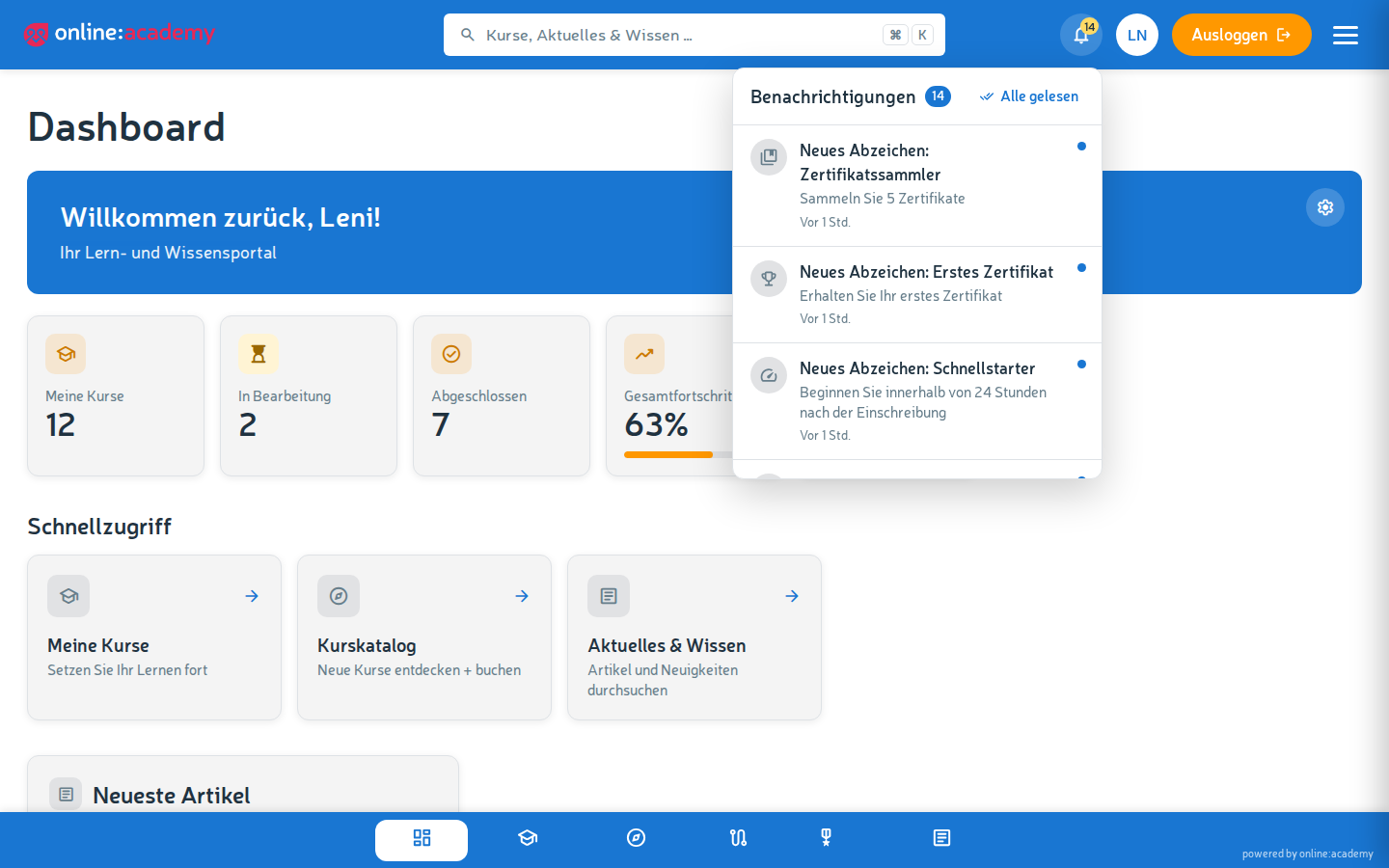
- Unread notifications are highlighted
- Clicking a notification opens the associated content (course, peer review, certificate …)
- Mark all as read in the dropdown marks everything as read at once
What types of notifications there are
| Type | When it arrives |
|---|---|
| Course completed | You have successfully finished a course |
| Certificate received | A new certificate is available |
| New award | You have received an award (course completion, milestone, learning streak …) |
| Learning path assigned / completed | A learning path was assigned to you, or all courses of a learning path are finished |
| Mandatory assignment assigned | A mandatory assignment has been created for you |
| New enrollment | You have been enrolled in a course |
| Enrollment request approved / declined | Your enrollment request has been processed |
| New peer-review task | You are asked to rate someone else's work |
| Group invitation | You have been added to a learning group |
Many of these events (e.g. course completion, certificate, mandatory assignment) additionally arrive as an email in your inbox. Reminders about upcoming mandatory-assignment deadlines come exclusively by email.
Tips
- Cross-device: Notifications are stored server-side — if you read them on your laptop, they're also marked as read on your smartphone.
- Check in regularly: New messages in learning groups don't trigger a notification — open your groups directly from time to time.
Frequently asked questions
I'm not getting any notification emails. Two possibilities:
- The mail is landing in your mail program's spam folder — mark the sender as "not spam".
- The email address in your profile is out of date — click your profile picture at the top right and check.
I clicked "Mark all as read" but still want to look at a notification in detail. The notification itself stays in the dropdown, it's just marked as "read". Clicking it takes you to the associated content as usual.
Do my managers or trainers get the same notifications as me? No — notifications are individual per account.
Can I configure which notifications I get? Not currently — the notifications are fixed.