Document and Email Templates
Templates control how automatically generated content looks and sounds: invoices, system emails (e.g. order confirmation, course access, mandatory assignment, course reminder), certificates, and mandatory assignment reminders. Instead of leaving these texts hard-coded, you can design them yourself — with your wording, your logo, and your corporate design.
Every company maintains its own templates. If there is no dedicated template for a use case, a sensible system default template automatically kicks in — so sending always works, even without you setting anything up.
Who is allowed to edit templates?
The templates area is usable from Company Admin upward. (The menu entry is already visible from Content Manager, but the content only loads with Company Admin permissions.)
What templates are good for
Workflow (e.g. assign a mandatory assignment)
        ↓
Which template is assigned to this purpose?
   ↓ own template            ↓ none of your own
Your template is          the system default template
used                      is used
A template has a type (the broad category) and is assigned to a purpose (the concrete use case). Only through the purpose does the system know which template to load in a particular flow.
| Type | What for |
|---|---|
Invoice (invoice) |
Layout and text of invoice PDFs |
Email (email) |
System emails: order confirmation, course access, mandatory assignment, welcome email, course reminder, and more |
Certificate (certificate) |
Layout and text of the completion certificates |
Assignment reminder (assignment-reminder) |
Reminder emails about due mandatory assignments |
Background on certificates
How the awarding of certificates is controlled per course (course toggle, the "passed"/"participated" variants) and which placeholders certificates know is described under Certificates and certificate templates.
Viewing existing templates
- In the app, open the menu section Administration → Document templates (tab Templates).
- You see all templates of your company as a tile list with a type filter and a small preview.
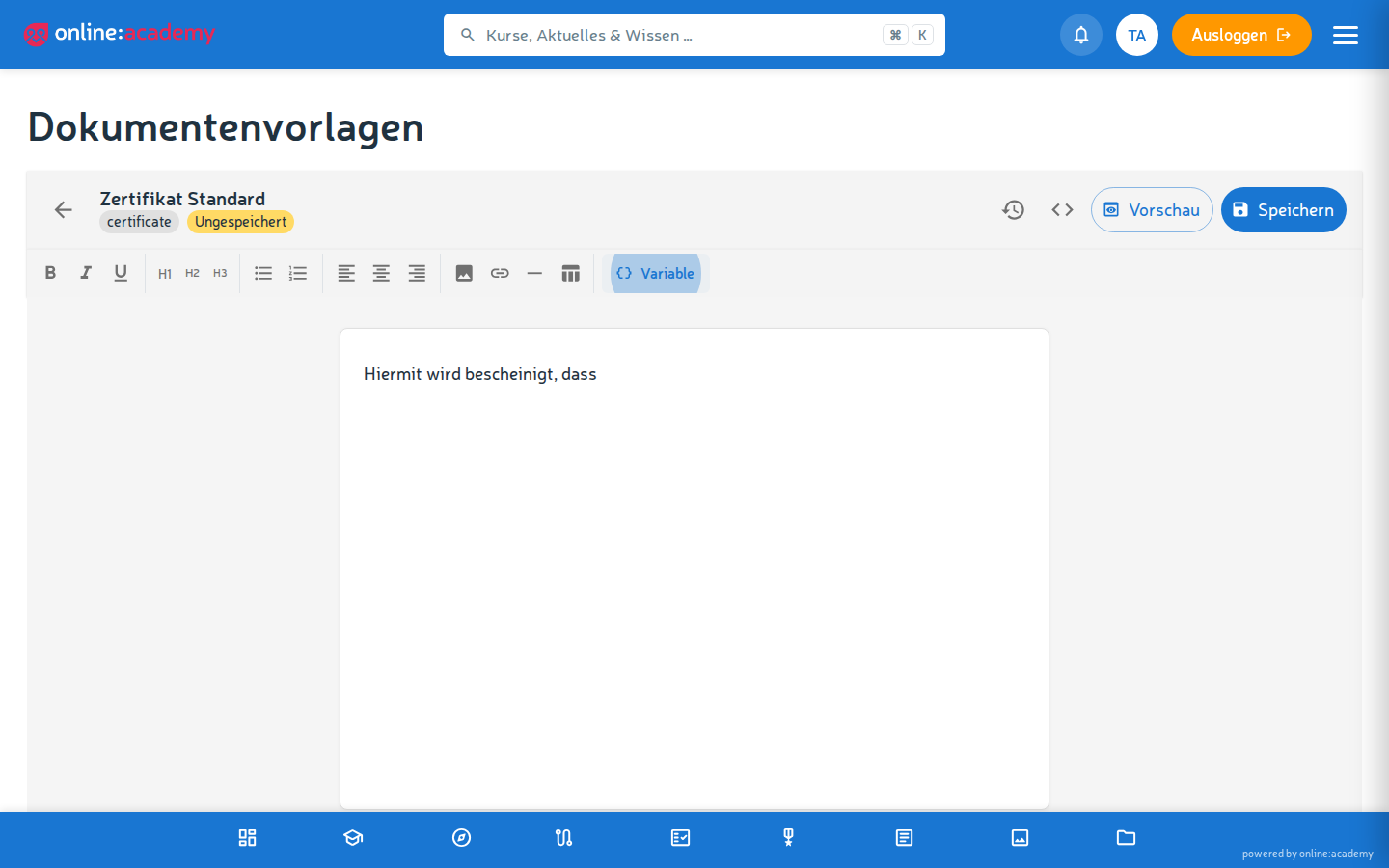
- Clicking a tile opens the editor with a preview and editing options.
Per tile you can:
- Edit — opens the editor
- Duplicate — creates a copy as a starting point for a new variant
- Delete
Copy first, then adjust
Instead of building every template from scratch, it's worth duplicating an existing one — often there's already a default template with a logo and design you can use as a basis.
Creating a new template
- Click New.
- Fill in the fields:
- Name — e.g. "Welcome email 2026"
- Type — invoice, email, certificate, or assignment reminder
- Slug (short identifier) — has to be unique within your company and the same type
- optionally a description
- Write the content in the editor — see the next sections.
- Check the preview (HTML and/or PDF).
- Save.
The editor
The editor is a WYSIWYG editor ("what you see is what you get") — you format directly, without HTML knowledge:
- Text formatting: bold, italic, underline
- Headings, lists, alignment
- Images, links, dividers, tables
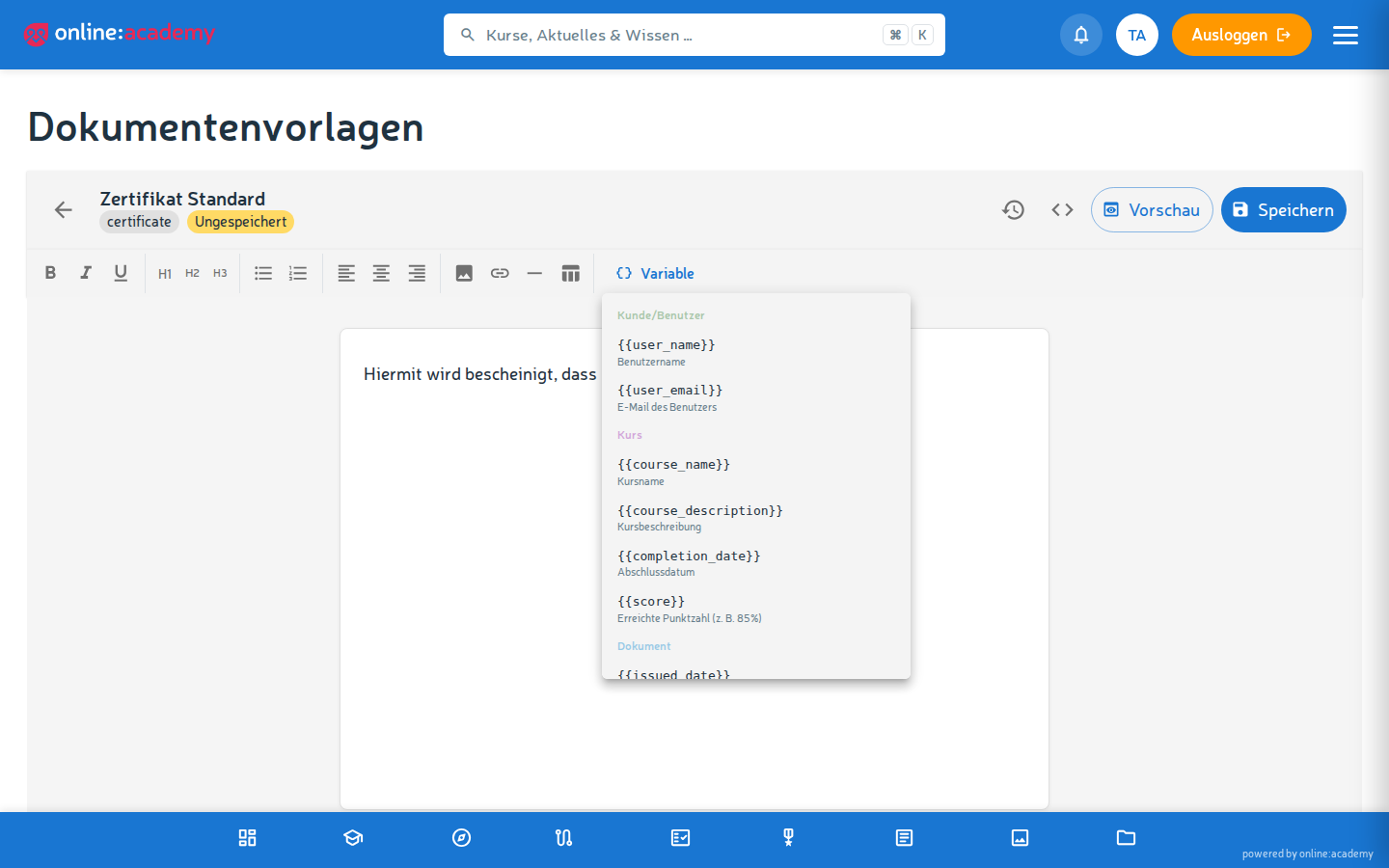
- Insert placeholders: via a dropdown you choose categorized placeholders (company, customer, order, course, document). The chosen placeholder appears as a colored pill in the text and is applied correctly and automatically on saving.
- Invoice building blocks (for invoice templates only): ready-made blocks for the invoice header, customer block, line-item table, totals block, and footer.
- HTML mode for experienced users who want to edit the source code directly.
Using placeholders
Placeholders are gaps that get filled with real data when sending — e.g. the person's name or the course name. The easiest way to insert them is via the dropdown.
Mind the spelling
Templates of the type mandatory assignment reminder use placeholders in camelCase (e.g. firstName, courseUrl). All other types use snake_case with underscores (e.g. first_name, course_url). The safest way is to insert placeholders via the dropdown so the spelling is right.
A selection of the most important placeholders per type:
| Type | Example placeholders |
|---|---|
| Invoice | company_name, company_logo, invoice_number, invoice_date, customer_name, total, currency |
first_name (first name), user_name, course_name, course_url (link to the course), company_name, company_logo, login_url |
|
| Certificate | user_name, course_name, completion_date, score_percent, completion_type ("passed"/"participated"), qr_code, company_name, company_logo |
| Assignment reminder | firstName (first name), studentName, courseName, dueDate, daysRemaining, courseUrl (link to the course), companyName |
Newer placeholders
Since June 2026 there's the first name (first_name or firstName, automatically derived from the full name) and a direct course link (course_url or courseUrl). For certificates, completion_type (completion variant "passed"/"participated"), qr_code (QR code for verification), company_name, and company_logo (company branding) are additionally available. The full selection per template is shown by the placeholder dropdown in the editor.
Date placeholders are automatically displayed as DD.MM.YYYY. If you misspell a placeholder (i.e. use one the system doesn't know), it's highlighted in red in the preview — so you spot typos immediately.
Using the preview
Before a template goes live, always check it in the preview. The mode depends on the template type:
- Certificate templates show a PDF preview (A4 landscape), embedded in the preview dialog.
- All other types (invoice, email, assignment reminder) show an HTML preview with sample data (e.g. "Sample GmbH", "John Doe").
What to look out for:
- Are all placeholders replaced correctly? (No more red markings.)
- Is the layout right — does no text run over the edge?
- Is the logo well placed and sharp?
- If something isn't right: adjust, preview again, until it fits.
Versions — bringing back earlier states
Every save automatically creates a new version. That way you can undo changes at any time:
- In the editor, open the version history (sidebar/drawer).
- You see the version number, timestamp, and — if provided — a change comment.
- Clicking an older version restores it as a preview in the editor.
- To apply it for good, Save afterwards — which in turn creates a new version.
Screenshot to follow
Version history with timestamps and the restore action
Assigning a template to a purpose
For a template to actually be used, it has to be assigned to a purpose.
- Under Administration → Document templates, open the Assignments tab.
- Per purpose, you see which template is currently active:
- System default (marked in gray) — there is no template of your own; the system uses its default template.
- Own template — a template maintained by your company is assigned.
- Per purpose, three actions are available:
- Create new — creates an empty template for this purpose
- Assign existing — selects an existing template
- Remove assignment — falls back to the system default
Something always goes out
Sending works even without a template of your own: the system uses your own template first, otherwise the system default. The layout and wording are generic then — but nobody gets an empty email.
Assigning references, it doesn't copy
"Assign existing" creates a reference to your template, not a copy. You can therefore assign the same template to several purposes, and when you edit it, the change takes effect everywhere immediately. "Remove assignment" only releases the reference — the template itself stays in the list.
Frequently asked questions
I created a template, but it isn't being used. Check under Assignments whether the template is assigned to the appropriate purpose. Merely creating a template isn't enough — it still has to be assigned.
My placeholder appears red in the preview.
Then the system doesn't know it — usually a typo. Watch the correct spelling (assignment reminder: camelCase, otherwise snake_case) — the safest way is to insert it via the dropdown.
Can I undo a change? Yes, restore an earlier version via the version history and save.
How exactly do I create and design certificates? Background on awarding certificates and the placeholders under Certificates and certificate templates.
How do mandatory assignment reminders relate to the templates? The reminder emails about due mandatory assignments use the template of the type assignment reminder. How you assign mandatory assignments is described under Mandatory assignments.