Roles and Permissions
Every person in your company has a role. The role determines what that person can see and do in online:academy — from pure learning all the way to full company administration. This page explains which roles matter in practice, who is allowed to do what, and how you give someone a role.
Where this happens
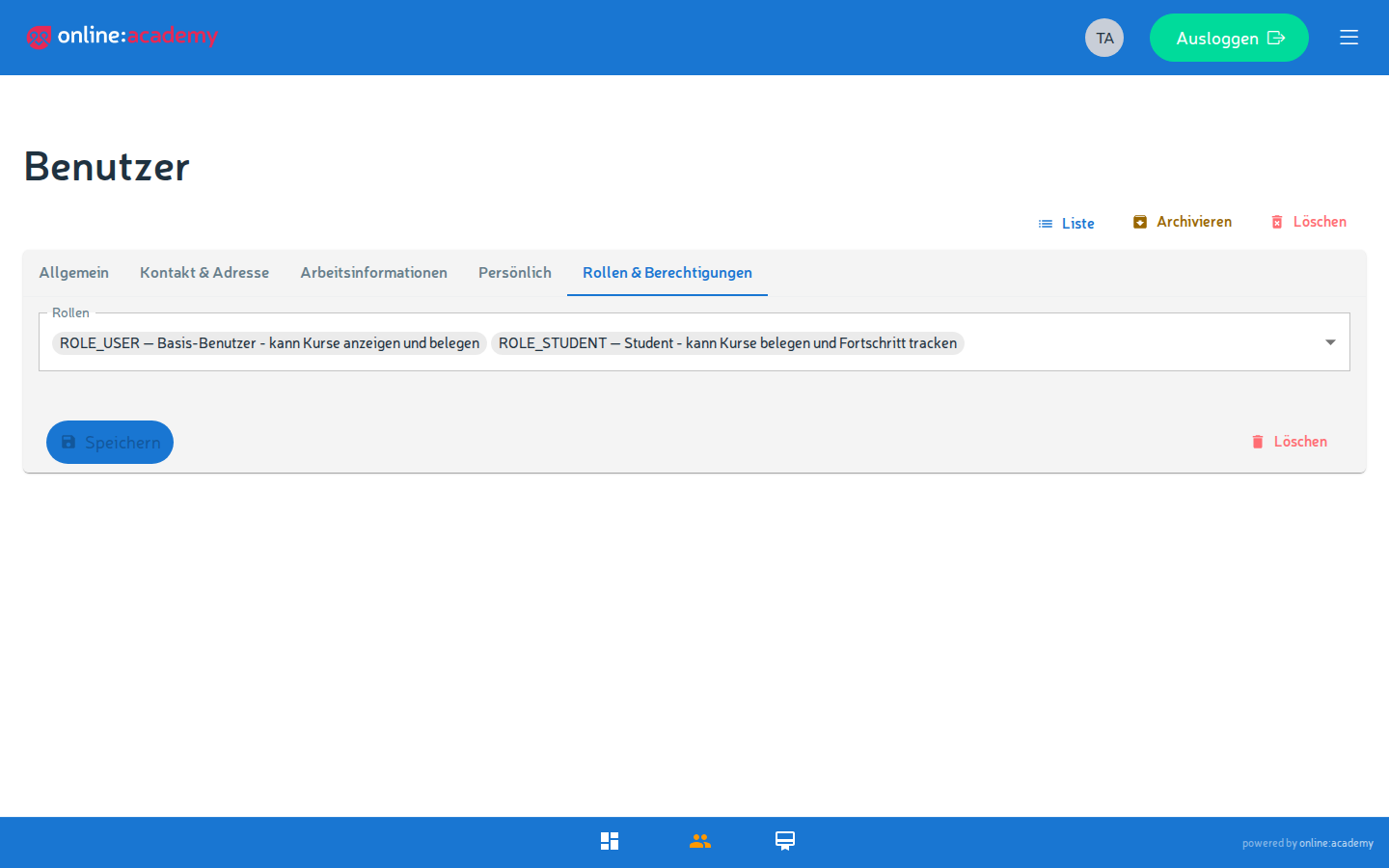
You assign and change roles in the Admin Portal on the respective user — the same area where you invite people (see Managing users).
What a role controls
Among other things, the role determines:
- Whether someone only learns or also creates courses and supervises them
- Whether someone may create learning paths, templates, or reports
- Whether someone may invite other users, assign roles, and manage the company
The higher the role, the more is possible — and the more carefully you should assign it.
The roles that matter in practice
For day-to-day work in your company, these four roles are the important ones:
| Role | Allowed to do |
|---|---|
| Learner | Take courses, work through lessons, collect certificates, see their own progress. The default role for most employees. |
| Trainer / Instructor | Everything a learner can, plus: create and supervise their own courses, enroll participants and track their progress. |
| Content Manager | Everything a trainer can, plus: create learning paths, maintain templates, and use analytics/reports across multiple courses. |
| Company Admin | Full company administration: invite and manage users, assign roles, maintain branding and settings, edit document templates. |
Platform-wide roles come from the platform team
Beyond these, there are platform-wide roles (e.g. Operator / Platform Admin) that work across companies. These are assigned by the platform team and don't belong in your company administration — you don't need to worry about them.
The most important rule: only assign lower roles
You can only ever assign roles that are lower than your own.
As a Company Admin you can therefore invite and appoint learners, trainers, and content managers, for example — but not additional Company Admins or higher. If you try anyway, the system rejects the assignment.
Why this rule?
This way no one can give themselves or others more permissions than they're entitled to. If you need a person at the same level as you (e.g. a second Company Admin), turn to someone with higher permissions or to the platform team.
Giving or changing someone's role
You assign a role either directly when inviting someone or later on an existing user:
When inviting (a new person):
- In the Admin Portal, go to Invitations → Create.
- Enter the email address and select the roles.
- Save — the roles are applied automatically upon registration.
(Described in detail under Managing users.)
For an existing person (changing the role):
- In the Admin Portal, go to Users.
- Find and open the person.
- Select a new role (only roles below your own).
- Save.
A role change takes effect after signing in again
After a role change, the person should sign out and back in once so the new permissions take full effect everywhere.
Frequently asked questions
Which role do I give "regular" employees? Learner. That's enough for everyone who should take courses and earn certificates.
Someone should be allowed to create courses — which role? Trainer / Instructor. Anyone who additionally needs learning paths, templates, and cross-course reports gets Content Manager.
A role I want to assign can't be selected. It's at or above your own level. That's by design — only someone with higher permissions can assign it.
Related page: Managing users