Building lessons
Lessons are the building blocks of your course. They can have different content types — from simple text through video to interactive H5P. This page explains how to create lessons and which type is right for what.
Creating a new lesson
Creating a lesson happens in two steps: first the lesson with its framing data, then the content.
Step 1 — create the lesson:
- Open your course in Course management and switch to the lesson list.
- Click New lesson.
- Give it a title — learners see it in the lesson list.
- Select the lesson type (see the table below).
- Optional: description, estimated duration, minimum score, mandatory toggle.
- Save.
Step 2 — maintain the content:
Click Edit content on the saved lesson. The content editor adapts to the chosen type (quiz questions, video selection, text editor, …).
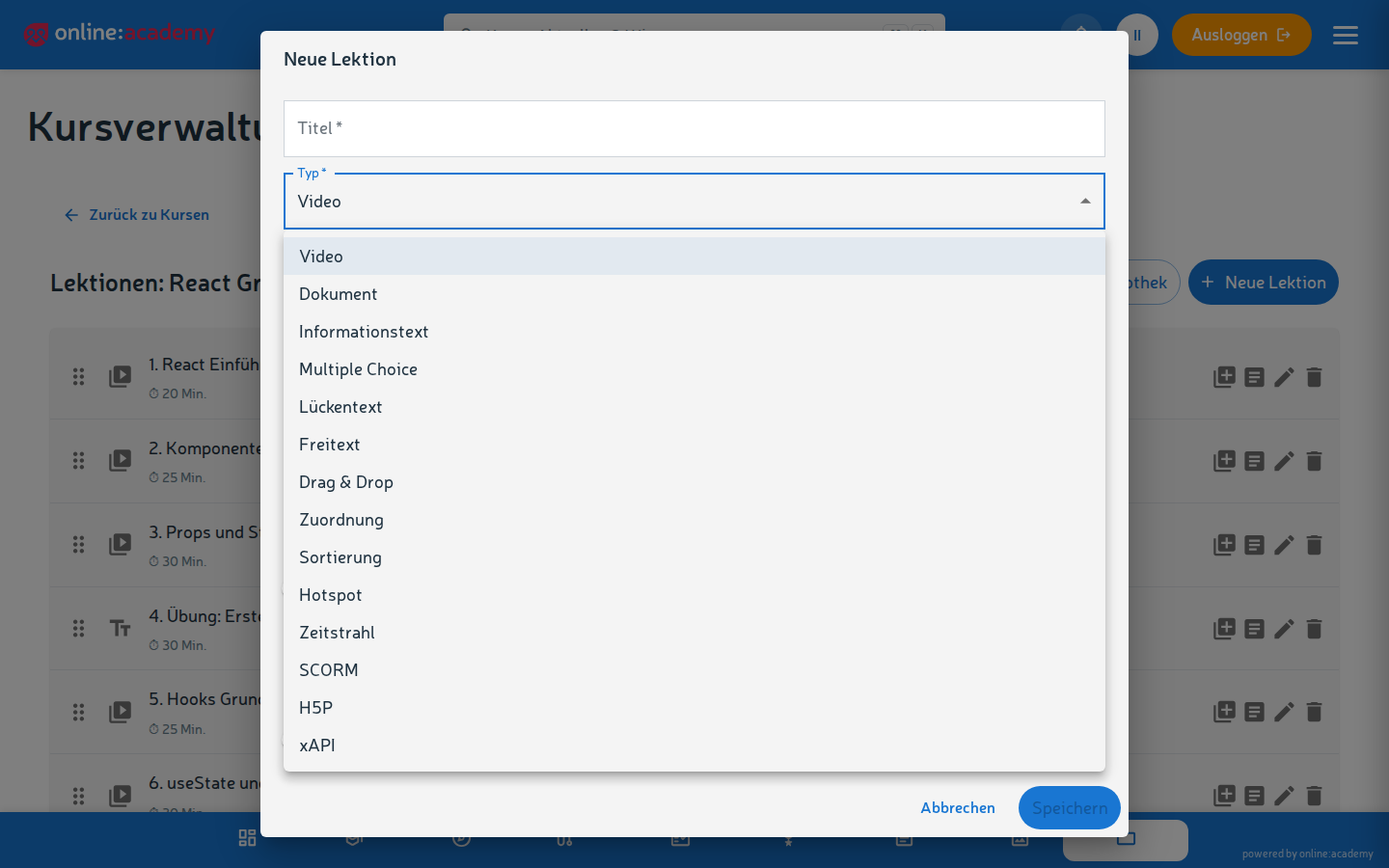
Which lesson types exist
| Type | What's possible | When it makes sense |
|---|---|---|
| Video | Embed a video from the media library + optional accompanying text | Demonstration, explanation, lecture |
| Document | PDF or other file to view / download | Scripts, handouts, reference material |
| Info text | Plain text with formatting | Explanations, overviews, introductions |
| Multiple choice | Questions with answer options, one or several correct | Knowledge check, self-test |
| Free text | Open question, answer automatically graded by the AI | Reflection, applied expertise, depth |
| Cloze text | Text with gaps to fill in | Practicing vocabulary, technical terms |
| Matching | Assign terms to categories | Learning classification |
| Drag & drop | Drag elements into predefined zones | Arrangements, placements |
| Sorting | Put elements into the right order | Orders, sequences |
| Hotspot | Image with clickable areas | Explaining anatomy, diagrams, charts |
| Timeline | Order events chronologically | History, processes |
| H5P | Interactive content (Interactive Video, Memory, …) | Highly interactive learning units — see Creating H5P content |
| SCORM | Embed an external SCORM package | Existing SCORM content from other tools |
| xAPI | Embed an external xAPI learning package | Existing xAPI content from other tools |
The selection is large — as a rule of thumb: multiple choice for quick knowledge checks, H5P when you want a bit more of a wow effect, free text when you want to demand depth.
Order and sequencing
In the lesson list you can reorder lessons via drag and drop. In a sequential course the order determines what learners get to see when.
Per lesson you also use a toggle to control whether it is mandatory or optional.
Order enforcement only exists course-wide
Whether lessons must be worked through in order is decided solely by the course's "Sequential" toggle (see Creating a course). There are no individual unlock rules per lesson ("this one only after that one").
Tips for each type
Video lessons
- Embed videos from the media library — upload the video before creating the lesson.
- Accompanying text below the video is useful for: key learning objectives, pointers to certain spots in the video, source references.
- Long videos (>15 min) are often better split into several shorter lessons.
Multiple-choice quiz
- 3-5 answer options per question, ideally all plausible (no obviously wrong distractors).
- Mark the correct answers — the system grades automatically. Marking several answers automatically turns the question into a multiple-select one.
- Explanation per question (optional) — learners see it after submitting, so they also learn from wrong answers.
Free-text lessons with AI grading
- Clear task — what should be assessed, which aspects matter?
- Provide a model answer — the AI compares against it; the more precise, the better the grading
- Define grading criteria — e.g. "professional correctness", "completeness", "own contribution"
- Set a maximum number of points — learners see their score
AI grading is an aid, not a final verdict. For critical assessments (mandatory certificate courses), enable the course toggle "AI gradings require trainer approval" — see Quizzes and grading.
Cloze text
- Set precise gaps — one gap per term, not whole sentences
- You write alternative correct answers with
|directly into the gap:{{answer|synonym}} - Capitalization doesn't matter in the comparison — the system always evaluates tolerantly
H5P
→ Separate guide: Creating H5P content
SCORM
- You can upload the SCORM package (ZIP) directly in the content editor of the SCORM lesson — or select a ZIP already stored in the media library
- Caution: SCORM content is loaded in an iframe — it may differ stylistically from your course
Copying lessons
Via the library:
- Click the Save to library icon on the lesson.
- In the target course (the same or a different one), choose From library in the lesson list — the lesson is inserted as an independent copy.
Deleting lessons
Via the delete icon in the lesson list. For courses that are already running: bear in mind that learners lose the connection of their notes to the lesson.
Frequently asked questions
How long should a lesson be? Most well-functioning lessons take 5-15 min to work through. Very short lessons (< 2 min) feel like fragments, very long ones (> 30 min) are tiring — better to split them.
Learners complain that quiz answers are marked "wrong" even though they make sense.
For cloze text: add alternative answers using the {{answer|synonym}} notation. For multiple choice: check whether the marking of the correct answer really fits.
Can I format content in the lesson editor (bold, lists)? For info-text lessons yes — a rich-text editor with bold/italic/underline, lists, quotes, code blocks and links. The lesson editor does not support images or tables — for image-heavy content, document lessons (PDF) or H5P are a better fit. For quiz questions only basic text — a question should be phrased briefly and clearly.
How can I see where learners drop off? A per-lesson evaluation (completion rates, average processing time) is available under Administration → Analytics & Reports in the Course details tab — this area is visible from the Content Manager role upwards. As a trainer without that role, please contact your content manager or admin.
Can I play through lessons as a learner for testing? Yes — the lesson list has a preview mode that lets you play through the course as a learner.