Media library
The media library is the central store for all of your company's files — videos, PDFs, images, audio, ZIP packages. You use it to embed content in your courses and to share it with other trainers.
What you can upload
All common formats — the library sorts them by type automatically:
| Category | Typical formats |
|---|---|
| Videos | MP4, WEBM, MOV, … |
| Documents | PDF, DOCX, PPTX, XLSX, … |
| Images | JPG, PNG, GIF, SVG, WEBP |
| Audio | MP3, WAV, OGG |
| Other | ZIP (e.g. SCORM packages or H5P exports) and other file types |
Maximum size per file: 2 GB.
Uploading a file
Individually
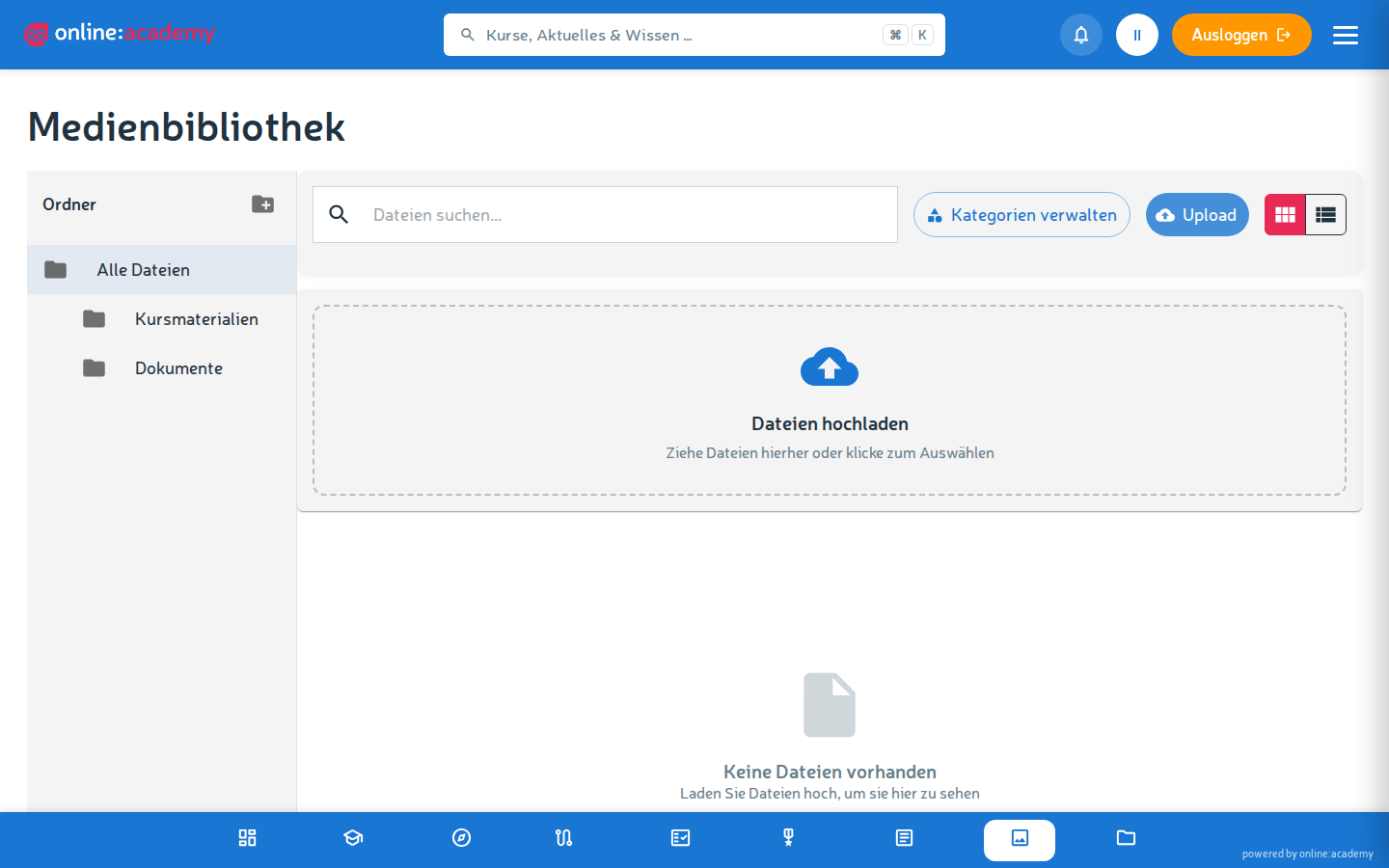
- Go to Media library in the main menu.
- Navigate to the target folder.
- Click Upload file and choose the file (or drag it straight into the upload area).
- Optional: assign one or several categories — a thematic classification (e.g. "Safety training"), which helps with filtering later.
- Upload — the progress bar shows the status.
The file name comes from the uploaded file — so give the file a meaningful name before uploading. A description can be added afterwards by Media and Content Managers via "Edit file".
Several files at once
- Drag and drop several files straight into the upload area
- Alternatively, multi-select in the file dialog (
Ctrl+clickorShift+click)
Each file gets its own progress bar. If individual uploads break off, you can retry them without affecting the rest.
Folders and structure
Creating, renaming, and deleting folders is possible for Media Managers and Content Managers — as a trainer, you upload into the existing structure. If a folder is missing, talk to your Media or Content Manager.
- Nesting is possible up to 3 levels deep
- Tree view in the sidebar — click through the folder structure
- Search — finds files by file name
A proven structure is thematic and top-down, e.g.
Marketing/
  Brand/
  Campaigns/
Compliance/
  Data-protection-training/
  Fire-safety/
Better a few more folders with clear names than a handful of mega folders.
Versions of a file
Every file can have several versions — you don't have to create a new file when updating.
Uploading a new version
- Click the file in the library.
- Click Upload new version.
- Choose the new file.
- Optionally enter a change note — e.g. "Fixed typo on slide 3".
- Upload.
The old version is kept. Lessons that embed this file automatically show the newest version.
Restoring an old version
Jumping back to an older version (Revert to this version in the version history) is possible for Content Managers and Company Admins. Handy if the most recent update introduced an error — the previously active version remains in the history.
Categories
Files can be assigned to one or several categories (a flat list, e.g. "Compliance", "Marketing") — they serve as a thematic filter in the library. The category list is maintained by your Media or Content Manager.
Permissions
By default, as a trainer you have:
- Read access to all folders and files of your company
- Upload permission for new files and new versions of existing files
Editing (description, categories), deleting, and folder management are reserved for Media and Content Managers — including for files you uploaded yourself. If one of your files should go or needs a description, let your Media Manager know.
Frequently asked questions
How do I know whether a file is still used in lessons? The system checks this automatically when deleting: a file that is still embedded in lessons cannot be deleted — a corresponding notice appears.
Can I download files from the library directly? Yes — the context menu of the file tile offers Download. Handy when you need an original file.
How do I upload a SCORM package? Upload it to the media library as a ZIP file. When creating a SCORM lesson, the ZIP appears for selection — alternatively, you can also upload the ZIP directly in the SCORM lesson editor.
A file is stuck in the upload at "99% — please wait". Rare, but annoying. Close the tab, open it again, upload the file once more. If it happens repeatedly: contact the person responsible for the platform.
The search doesn't find files. The search covers the file name — not the description, categories, or the file content. PDF content is not full-text indexed. Meaningful file names are therefore worth their weight in gold.