Assigning mandatory assignments
Mandatory assignments are the most important steering tool in your role: you assign a course or learning path with a binding due date to an individual person, a user group, or a whole department. The system enrolls them automatically and sends the reminders you configured. On request, an assignment repeats automatically (e.g. an annual mandatory training).
Assigning a single mandatory assignment
- In the main menu, go to Mandatory assignments.
- Click New.
- Fill in the fields:
- Target — choose course or learning path. For a learning path, the person is automatically enrolled in all mandatory courses of the path; the assignment is only done once the whole path is completed.
- Person — the person to be supervised (autocomplete search)
- Due date — mandatory field
- Repetition (weeks) (optional) — e.g.
52for a yearly repetition. After completion, the system sets the assignment up again automatically (see FAQ). - Note (optional) — shown to the person in the course player, e.g. "Please before the next team meeting"
- Configure reminders — see the next section.
- Save.
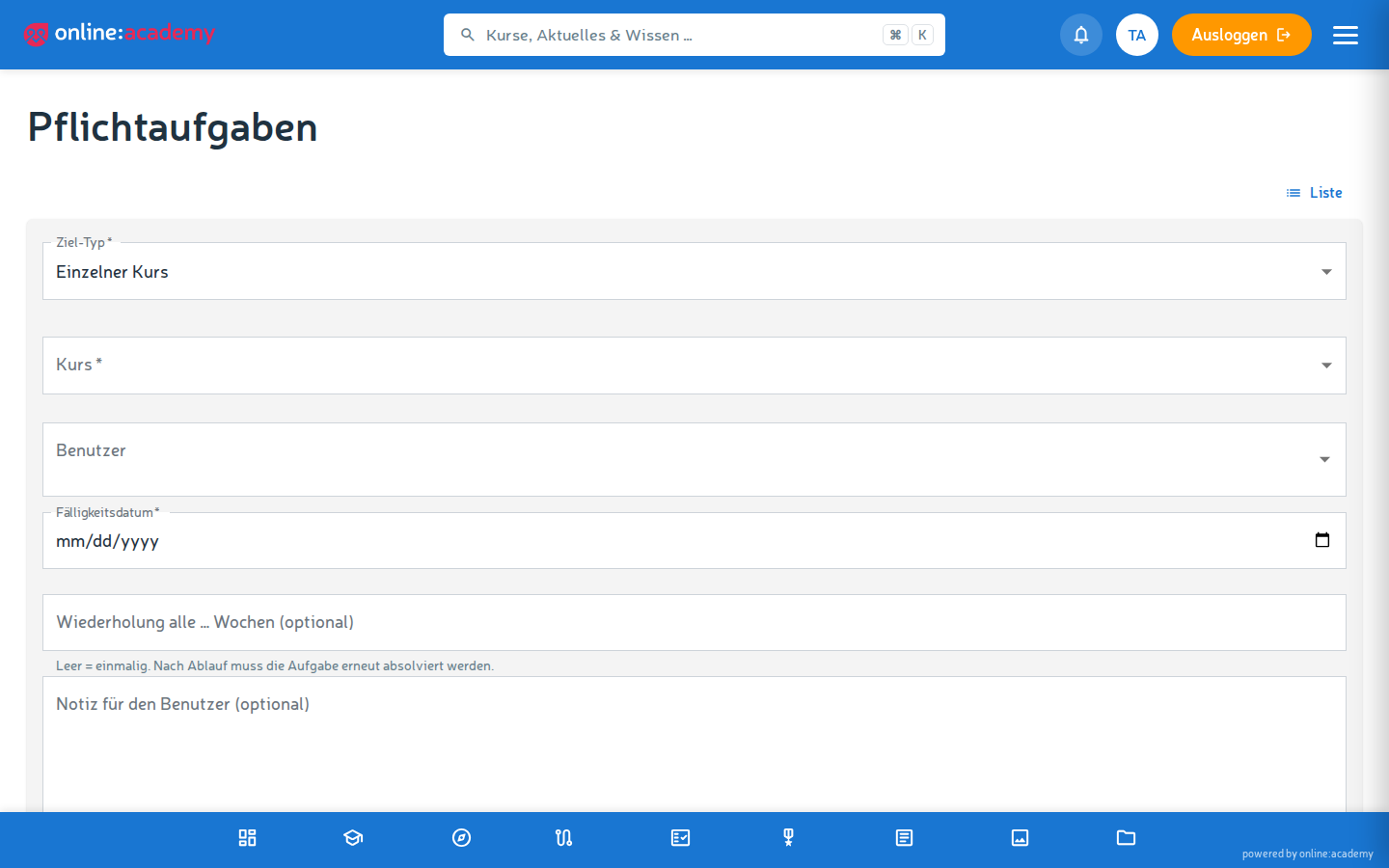
The person receives a notification in the platform and by email. They are enrolled in the course automatically; a separate enrollment is not needed.
Configuring reminder emails
You can define any number of reminders per mandatory assignment.
No reminder email without a configured reminder
There is no automatic default reminder — if you leave the reminder section empty, the person only gets the assignment notification. So for deadlines with teeth, create at least one reminder (new rows are prefilled with "3 days before, to the person").
For each reminder you define:
| Field | What it means |
|---|---|
| Days relative to the due date | Positive number = before the deadline. Negative number = after the deadline (a dunning notice if overdue). |
| Email template | Optional. If no template of your own is chosen, a standard email is sent. |
| Recipient | student (the person themselves) ⋅ assigned_by (you as the assigning person) ⋅ managers (supervisors) — exactly one recipient per reminder; for several recipients, create several reminders |
Typical reminder setups:
| Use case | Reminders |
|---|---|
| Low-key mandatory assignment | One email 3 days before the due date to the person |
| Important compliance training | Emails 14 / 7 / 3 / 1 day(s) before the due date; + a 1-day-overdue dunning email to the person and to you |
| Onboarding requirement | Only if overdue — a dunning notice 7 days after the deadline |
Note: The recipient type
managerscan be selected in the form, but sending to supervisors is not active yet.studentandassigned_bywork reliably.
Bulk assignment — many people at once
For quarterly trainings, onboarding waves, or entire departments, the bulk assignment dialog is worthwhile.
- In the mandatory-assignments overview, click Bulk assignment.
- Fill in everything on one surface in the Create bulk mandatory assignment dialog:
- Basic info — target (course or learning path), due date, optionally repetition and note
- Person selection via three tabs:
- Individual users — pick people one by one from the autocomplete
- By department — a whole department of your company
- By group — all members of a user group (from the Admin Portal — not to be confused with the app's learning groups, which cannot be selected here)
- Reminders (expandable) — as with the individual assignment, applied identically to all created mandatory assignments
- Optionally the preview — number + list of all people who will receive the assignment
- Create — the system creates the mandatory assignments all at once.
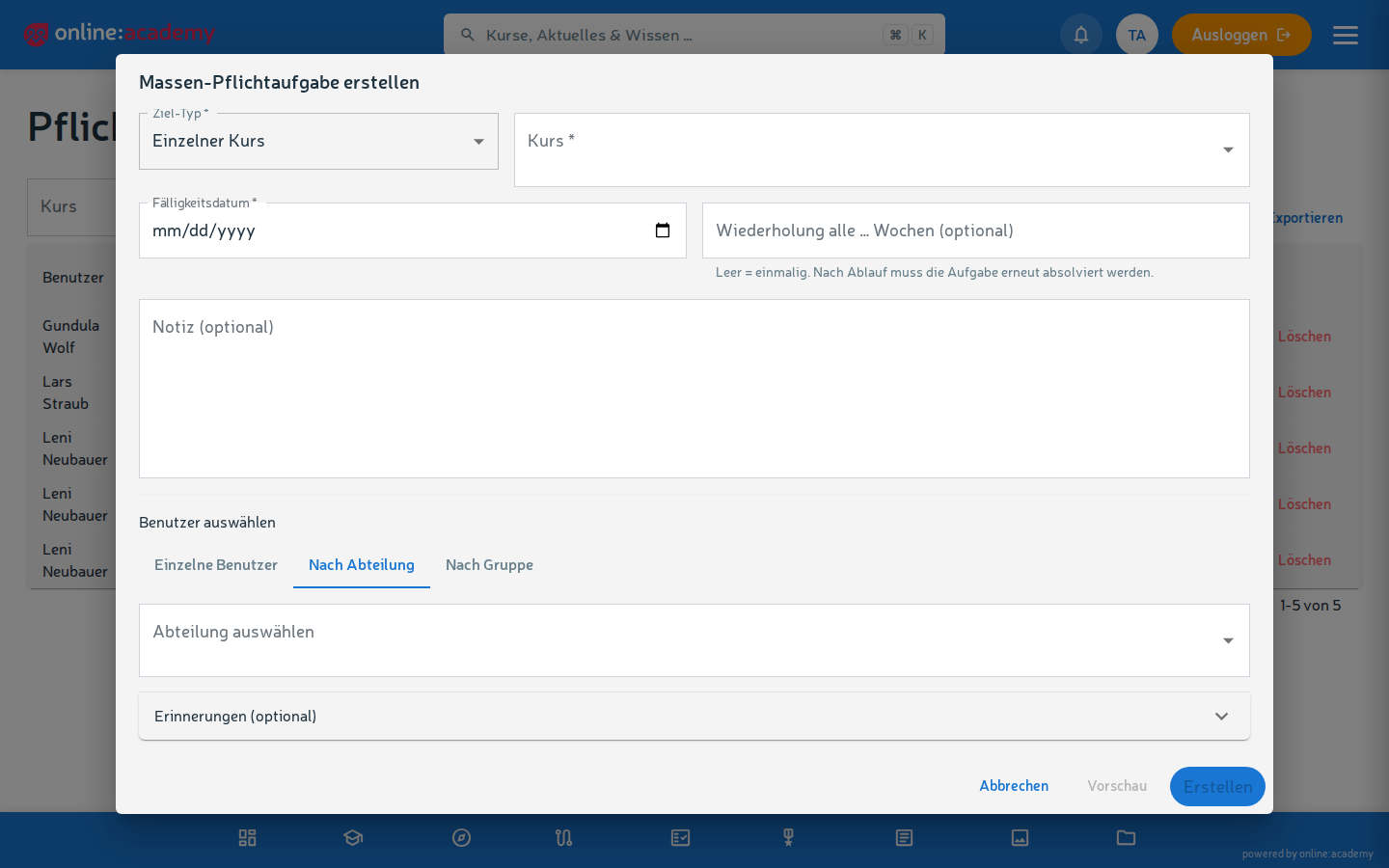
Existing mandatory assignments (same target + same person) are skipped — no duplicate assignments. The result message shows: created and skipped.
Tracking the status
In the mandatory-assignments overview you see per assignment:
| Status | What it means |
|---|---|
| Assigned | The person was enrolled but hasn't done anything yet |
| In progress | At least one lesson worked on |
| Completed | Course or path finished |
The list is sorted by due date — so overdue assignments (deadline passed, status not "Completed") are at the top. You can additionally filter by course, learning path, and status. More on this in Team progress.
Changing or withdrawing a mandatory assignment
When the deadline is no longer realistic or the assignment no longer fits organizationally:
- Click the mandatory assignment in the list.
- Edit — extend the deadline, adjust the note, reconfigure the reminders. Reminders not yet sent are recalculated against the new deadline.
- Or withdraw it via the delete icon — the assignment is removed. The person does not receive an automatic notification about this; give them a quick heads-up if needed. The course enrollment and the learning progress remain in place.
Frequently asked questions
A person already completed a course before the mandatory assignment. Do they get it twice? No — the system recognizes the existing enrollment and doesn't create a second one. However, the assignment status starts at "Assigned" and only catches up the next time something happens on the enrollment. For an already completed course, ask the person to briefly open the course again — or check the completion directly in the enrollment overview.
When exactly do the reminder emails go out? The system sends due reminders once a day in the early morning (around 6 a.m.) — so the email sits at the top of the inbox at the start of the workday.
A person says they didn't receive a reminder. Possible reasons: - No reminders were configured for the assignment (without configuration, no email goes out) - The email is in the spam folder - The email address in the profile is outdated
In such cases, point out to the person that the mandatory assignment still has to be done — the deadline stands.
A whole department should repeat a training regularly (annually). Can that happen automatically?
Yes. When creating it, set the Repetition (weeks) field — e.g. 52 for annually. After completion, the system schedules the next round: one repetition interval after the completion, the assignment is automatically set back to "Assigned", with a new deadline; the person is notified and the reminders run again. This also works for a bulk assignment to a whole department.
Can I still extend the deadline after sending? Yes — open the mandatory assignment → Edit → change the due date. Reminders not yet sent are recalculated based on the new deadline (already sent ones are not repeated).
A person doesn't show up in the selection at all. Then they probably don't have an account in your company yet. Invite them first (see Managing users) — after that they can be assigned. You cannot assign people from other companies.