Managing participants
Once your course is running, as a trainer you have an overview and tools for managing the people taking it — from enrollment requests to a progress overview.
Where to find the overview
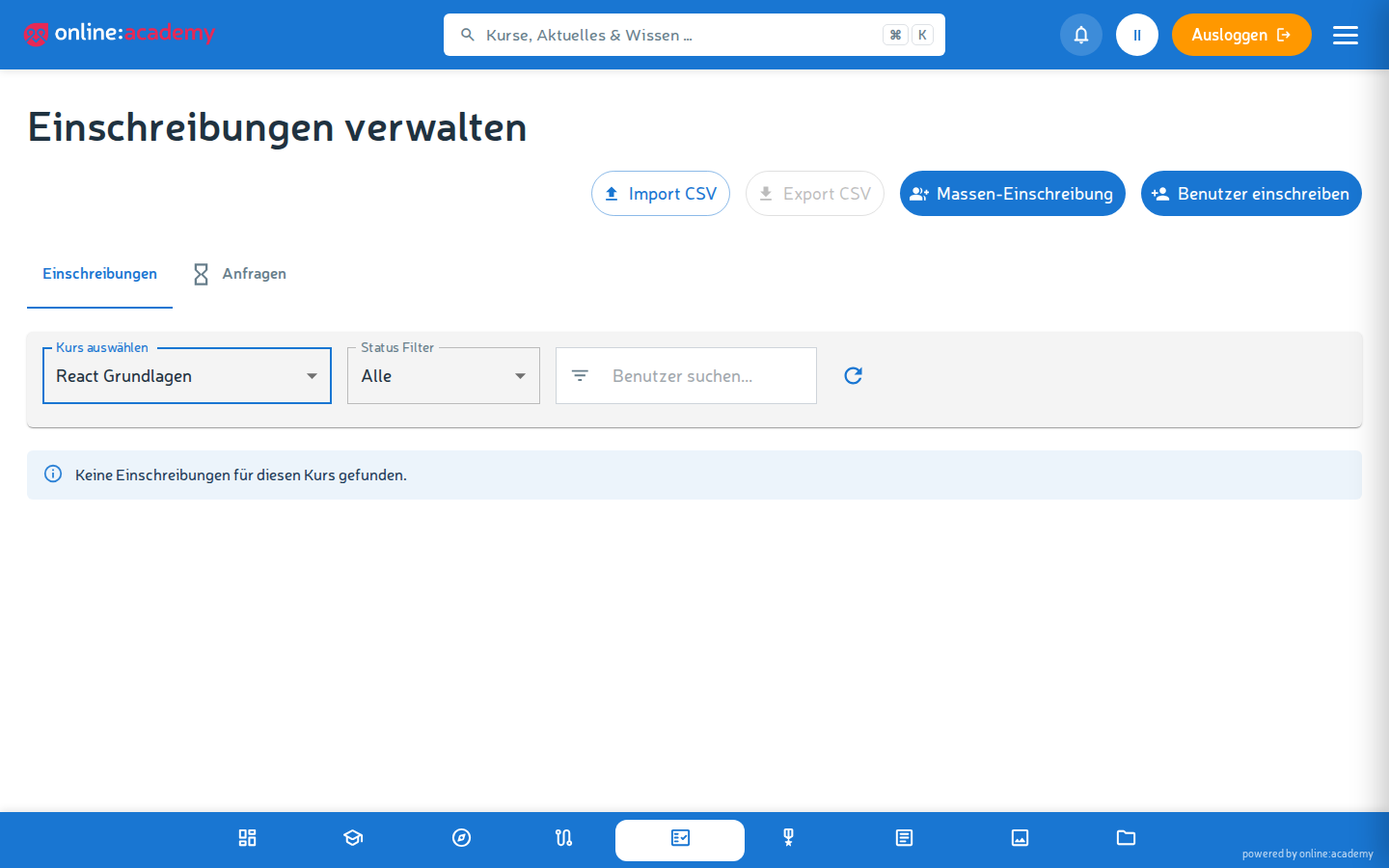
- Go to Enrollments in the main menu — the list shows all course enrollments of your company (not just your own courses).
- Set filters:
- by course (for a single course)
- by status (Enrolled / In progress / Completed / Not passed)
- free-text search for a person
What you see per person
| Column | Content |
|---|---|
| Name / email | Who is enrolled |
| Course | In which course |
| Status | Enrolled / In progress / Completed / Not passed |
| Progress | Percentage |
| Score | Current score |
| Enrolled / Started / Completed | The respective timestamps |
| Time | Total learning time in the course |
Enrolling a person manually
If you want to add a person to your course outside the normal enrollment mode:
- In the enrollment overview, click Enroll user.
- Select the person (search by name or email).
- Select the course.
- Enroll.
The person receives a notification about the enrollment. If the enrollment should have a deadline, create a mandatory assignment instead — it enrolls the person automatically.
Enrolling several people at once
For larger groups, bulk enrollment is worthwhile:
- At the top of the overview, select the course in the filter (the button is disabled while "All courses" is selected).
- Click Bulk enrollment.
- Choose the people in the dialog — via the tabs Individual users, By department, By group (user groups from user management), or Filter.
- Optionally check the preview (number + list of the people affected), then confirm.
Already enrolled people are skipped automatically — no duplicate enrollments.
Handling enrollment requests
If your course has the mode Request enrollment (see Creating a course), you'll see all waiting requests in the Requests tab — per request the person, course, and request date.
On Approve: the person is enrolled and notified. On Reject: the person receives a notification, optionally with your reason.
Monitoring progress
The enrollment overview shows progress, score, and learning time per person. More detailed reports (progress per lesson, last activity per person) are available under Administration → Analytics & Reports in the Course details tab — this area is visible from the content-manager role upwards.
Screenshot to follow
Analytics with a progress overview per person
Sending reminders
For mandatory assignments, the system sends reminder emails automatically — provided you configured reminders when creating the assignment. For normal enrollments without a deadline there is no reminder feature. Workaround: post a message to all members via a learning group — but note that group messages don't trigger a notification — or remind people outside the platform.
Ending an enrollment
If a learner should leave the course for organizational reasons:
- Find the person in the enrollment overview.
- Delete the enrollment via the delete icon.
Caution: deleting removes the enrollment including the course progress permanently — there is no "paused" or "dropped out" intermediate status. For mandatory assignments, additionally withdraw the assignment under Administration → Mandatory assignments, otherwise it stays open.
Frequently asked questions
A person complains that they can't access the course — but they're "enrolled". Check: - Is the course (and its catalog) active? - Does your company still have a valid license for the course (see the administrator guide Licenses and access)? - Are all mandatory prerequisites of the course met?
How do I see who was active in the course and for how long? The Time column in the enrollment overview shows the total learning time. More detailed per-person reports are available under Administration → Analytics & Reports → User details (from content manager upwards).
Can learners remove themselves from the course? No — there is no unenroll option under "My courses". If someone wants out, delete the enrollment in the overview (see above; caution: progress is lost).
A person should no longer see the course because they're leaving the company. The platform manager can archive the account — after that the person has no more access, but their previous data (completed lessons, certificates) remains in the system.
I also see learners of other trainers in the list. Yes — the enrollment management shows all enrollments of your company, regardless of who created the course. Use the course filter to restrict the view to your courses.
Can I set up reminders for voluntary (non-mandatory) courses? Currently not automated. Workaround: create a learning group per course and regularly post motivating messages there (no push notification), or assign the course as a mandatory assignment with a generous deadline and configured reminders.