Notes
Notes are your personal tool — they are strictly private, no one but you sees them. Not even your trainer or manager.
Notes are attached to a specific lesson. They're ideal for thoughts, reminders, your own examples or summaries.
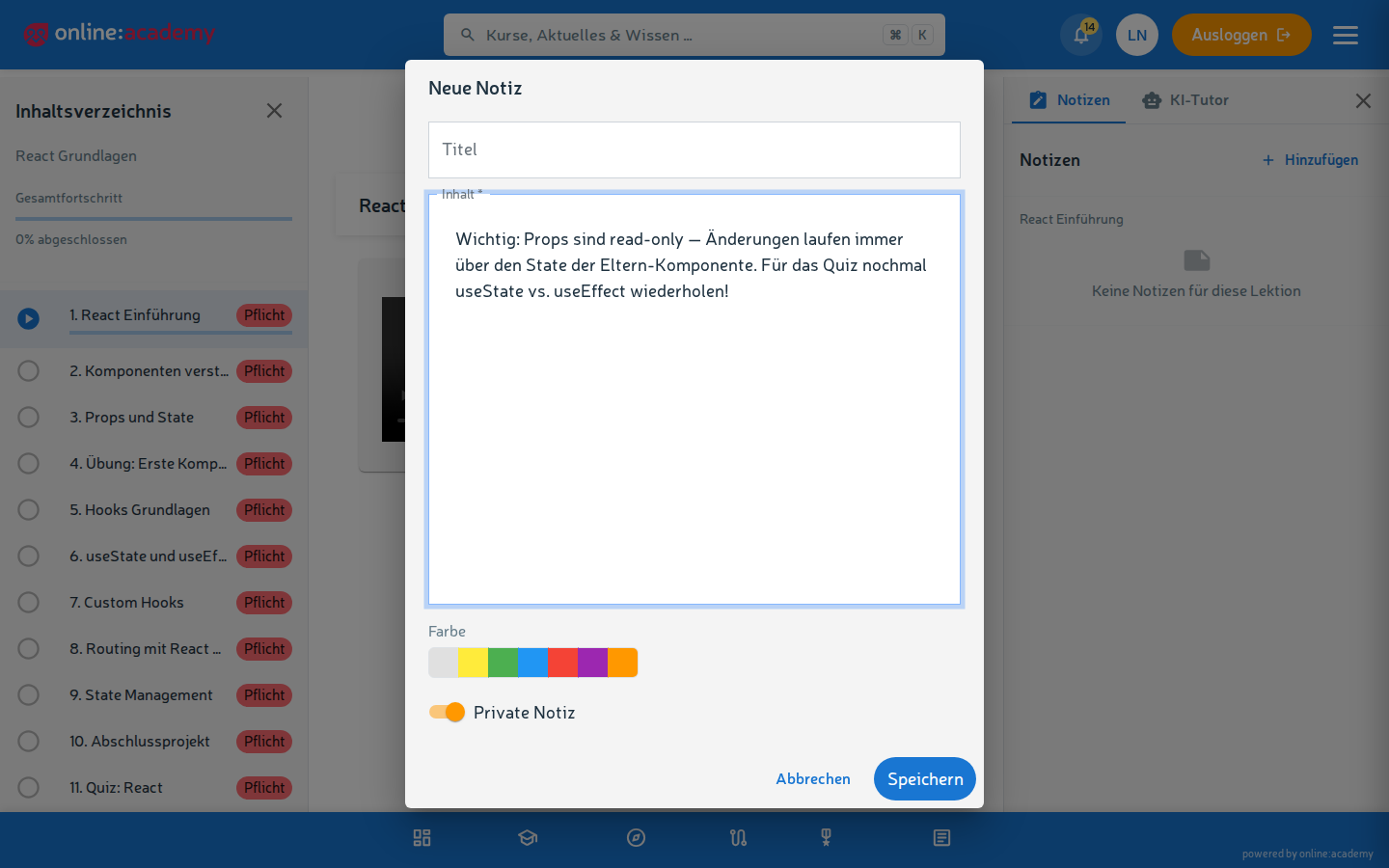
Writing a note
- Open a lesson in the course player.
- Click the drawer arrow or the note icon on the right to open the drawer.
- Activate the Notes tab and click Add.
- Type in a title and text, optionally choose a color — it appears as a colored marker on the note and helps you sort (e.g. yellow = open question, green = understood).
- Save — the next time you open the same lesson, your note appears again.
Below the current lesson, the drawer additionally shows your notes from the other lessons of the same course.
All notes at a glance
Under My notes in the navigation you'll find all notes across all courses, grouped by course:
- Search — the search field finds titles, content, course and lesson names
- Sort — by date, title or course
- Clicking the lesson chip of a note takes you straight back into the lesson where you wrote it
Exporting notes
You can download all notes as a PDF — grouped by course. Handy for exam preparation or offline review.
- Navigate to My notes.
- Click PDF at the top right.
Frequently asked questions
Does my trainer or manager see my notes? No, never. Notes are 100% private. Platform administrators have no insight into them either.
What happens to my notes when a course is deleted? The notes remain under My notes and are marked there with "Course no longer available". If you want to keep important content safe, export it as a PDF.
Can I format notes (bold, lists)? Not currently — notes are plain text. If you need structure, line breaks and bullet lists with dashes help.