Reports and export
Reports show you the figures for your company over time — who completed which courses, what the quiz scores look like, how the courses are received. You can look at them as live dashboards or export them as PDF / CSV / Excel for personnel files and compliance evidence.
Where you find reports
In the app under Administration → Analytics & Reports (from the Content Manager role, provided the analytics feature is included in your product license). Several tabs to choose from:
| Tab | Content |
|---|---|
| Learning progress | Enrollment trend, completion trend over time, course statistics |
| Engagement | Active people (daily/weekly), average session duration, streak statistics, top performers |
| Assessments | Score distribution, fail and pass rates (aggregated company-wide) |
| Ratings | Course ratings by learners: average stars, comments, ratings per course |
| Finance (Company Admin only) | Revenue trends from the orders |
| Course details | Per course: participant list with status, score, last activity; lesson progress |
| User details | Per person: learning history with courses, assessments, streak, and activity history |
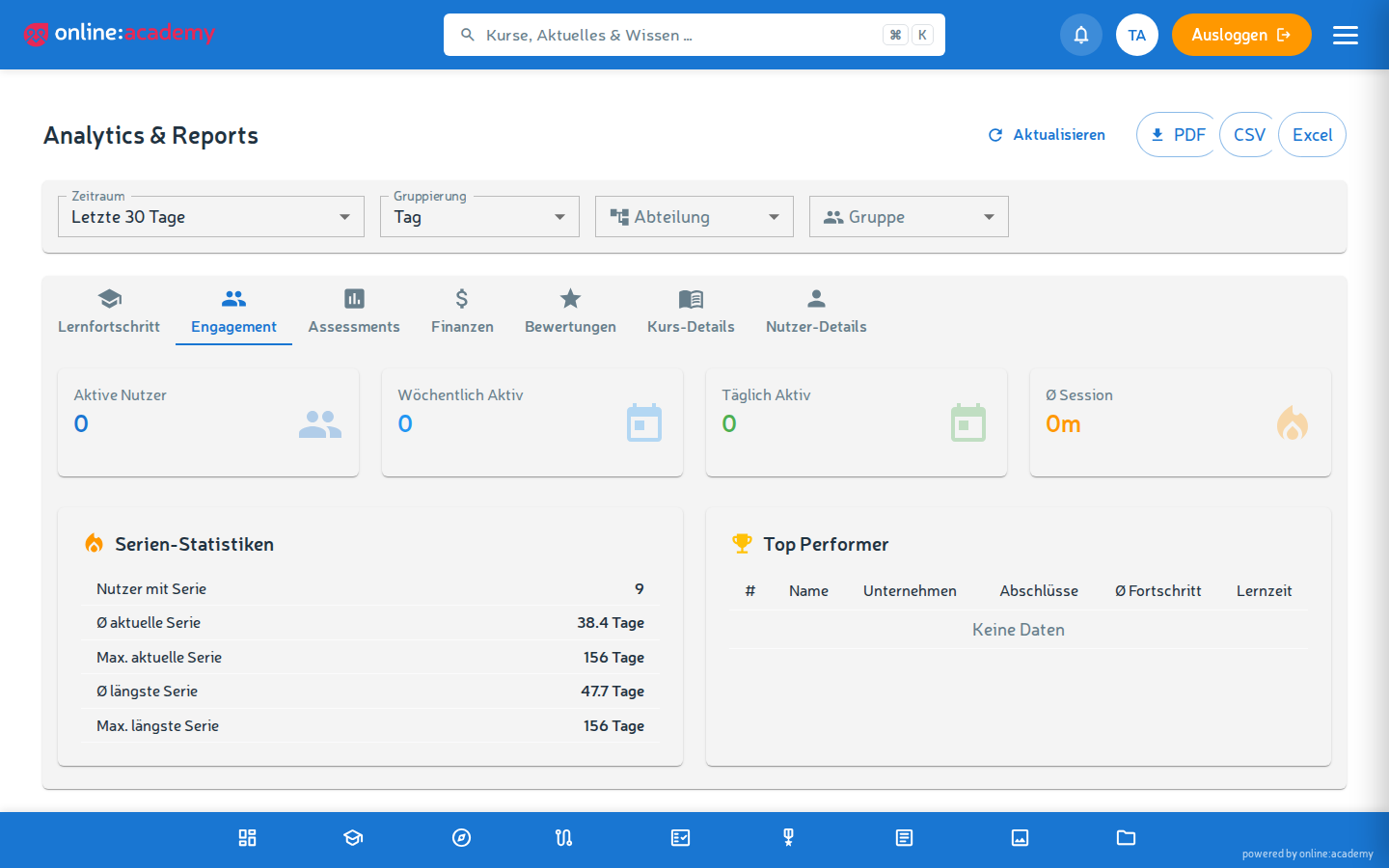
Filters per report
| Filter | What for |
|---|---|
| Time period | Last 7 / 30 / 90 / 365 days or custom |
| Grouping | Day / week / month — affects the trend charts |
| Department / group | Narrowing down to a department or user group (from the Admin Portal) |
Filters affect the charts and tables of the learning tabs and are kept when switching tabs. For evaluating a single course there's the Course details tab.
Reading the live dashboards
Learning-progress trend
- The "Enrollments" curve — how many people were enrolled per time unit (day/week)?
- The "Completions" curve — how many completed per time unit?
- The gap between enrollment and completion shows you the "backlog" — many enrollments, few completions means: courses too hard, too many parallel mandatory assignments, or time bottlenecks.
Engagement
- Active people per day — how many from your company are in there regularly?
- Streak distribution — who is active daily, who only sporadically?
- Top performers — who completes the most? Handy for recognition in team meetings.
Assessments
- Score distribution — if low scores pile up, courses are too hard or the teaching materials have gaps. The distribution is aggregated company-wide; for the course level, look at Course details and inform the trainer.
- Fail rate — the share of graded lesson attempts that were not passed.
Keeping an eye on certificates
There is currently no dedicated certificate report. For compliance evidence, use the Course details tab: there you see per course who has completed, and you can download the certificates bundled as a ZIP. Expiry dates of individual certificates are stated on the certificate itself ("Valid until") — an automatic warning list of expiring certificates doesn't exist yet; for recurring mandatory trainings, the mandatory assignment subscription takes care of reassigning them in time instead.
Exporting reports
In the learning dashboards (Learning progress, Engagement, Assessments, Finance) there's an Export button — three formats:
| Format | What for |
|---|---|
| Quick to share, visualizations preserved, good for report appendices | |
| CSV | Table data, further processable in Excel or other tools |
| Excel (.xlsx) | Like CSV, but formatted with header styling and correct encoding |

Which format when?
- PDF: for personnel files ("training record for person X 2026"), compliance audits, board reporting
- CSV/Excel: when you process the data further — e.g. feed it into your own HR spreadsheet, or combine several reports
Personal reports vs. team reports
Note the difference:
- Person detail report: all activities of one person over time. Good for employee reviews and personnel files.
- Team report: aggregated figures across all people, filterable by course / time period / status. Good for reporting.
The person detail report (tab User details) exports as PDF, CSV, or Excel, the team reports as table data.
Tips for everyday use
- Before important meetings: PDF export of your current learning-progress report — good as an attachment or a basis for discussion
- Quarterly: pull learning progress as Excel and feed it into the HR system; certificate evidence per course via the ZIP download in Course details
- For employee reviews: take the person detail PDF along as a learning CV
- Before annual training planning: look at Engagement + Assessments to understand where additional training or different teaching formats make sense
Frequently asked questions
Reports take a long time to load. For large time periods across many people, the system computes for a while. The system caches reports for ~5 minutes — if you trigger the same filter combination shortly after a run, it comes back immediately.
The Excel file shows umlauts incorrectly. When opening in Excel, this matters: "Data → From Text/CSV" (not directly by double-clicking). The platform format uses UTF-8 with BOM, which Excel detects correctly — but with a direct double-click, Excel sometimes still interprets it wrongly.
A particular column is missing from the standard report. There is currently no configurable report builder in the interface. Export CSV/Excel and add the evaluation in Excel — or report the need to the platform team.
Can I receive reports automatically by email every week? Not currently provided for directly in the UI. Workaround: put fixed appointments in the calendar, then pull the export manually.
The figures don't change even though someone just completed something. Reports are cached for ~5 minutes — the same filter combination returns the same state for that long. Wait briefly or change the filter slightly, then the system computes afresh.
Do I also see data from other companies? No — your reports cover exactly your company. Only the platform team (Operator) has cross-company reporting.