Team progress
Keeping an overview is a core part of your role: who is where, who will make the deadline, who needs support. This page shows you where to see the learning status and how to use it day to day.
No dedicated 'My team' area
The platform has no fixed manager-team view. You find the learning status in the existing overviews, in the analytics filtered by department or user group.
Where you find the overview
| Overview | Where | What for |
|---|---|---|
| Mandatory assignments | App → Administration → Mandatory assignments | Task-oriented: which task is pending for whom, where has the deadline been missed |
| Enrollments | App → Enrollments | Course-oriented: progress, score, and learning time per person and course |
| Analytics & Reports | App → Administration → Analytics & Reports | Aggregated: completion rates, quiz scores, activity — see Analytics and reporting |
Which one helps you most depends on what you want to know right now — a single task, a course, or a key figure across the company.
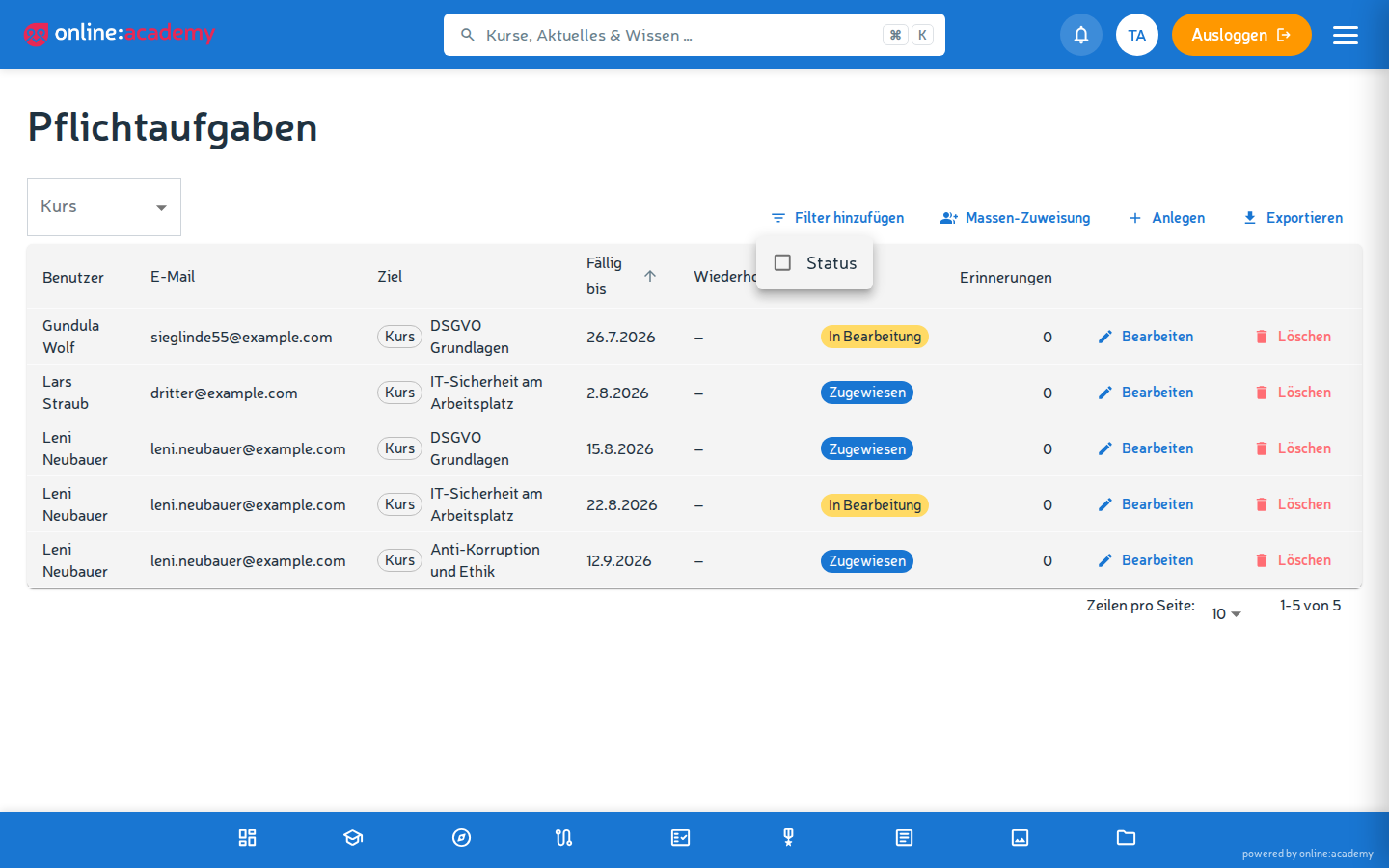
The mandatory-assignments list (task-focused)
The fastest answer to "where do I need to follow up":
- Open Administration → Mandatory assignments.
- The list is sorted by due date — the most urgent tasks are at the top. You can additionally filter by course, learning path, and status.
| Column | Content |
|---|---|
| User / email | Who has the task |
| Target | The assigned course or learning path |
| Due by | When the deadline is |
| Repetition | For subscription assignments, the interval |
| Status | Assigned / In progress / Completed |
| Reminders | The configured reminders |
You spot overdue ones by the date: deadline passed and status not "Completed". Since the list is sorted by due date, the candidates for following up are right at the top.
A routine for the week
- Work through the list from the top: deadline missed and not completed? → talk to the person or adjust the deadline.
- Due this week and still "Assigned"? → give a friendly nudge.
- Use the course filter to check a specific training wave that's underway.
Analytics (aggregated)
When it's about key figures rather than individuals — completion rates, average quiz scores, active people per time period — you use the analytics reporting. There you filter by time period, department, or user group and export the figures to Excel if needed.
Looking at an individual person
Via the analytics tab User details you can pull a learning history per person as PDF, CSV, or Excel (courses, progress, assessment results, learning streak) — e.g. for a development review or the personnel file. Certificate evidence is downloaded per course, bundled, in the Course details tab. See Reports and export.
A proven routine
Weekly (15–30 min)
- Work through the mandatory assignments list from the top: check overdue tasks and those due this week, remind people if needed.
- For active training waves: check the status with the course filter.
Monthly (30–60 min)
- Pull Analytics & Reports for completion rates — see Reports and export.
- Specifically address people with long inactivity and open tasks.
- At the end of the quarter or year: a summarizing report for the personnel file / compliance.
Frequently asked questions
A person has shown no progress for weeks — what should I do? First talk to the person themselves — maybe it's vacation, illness, organizational hurdles. If there are no external reasons and no activity: have a conversation about learning priorities, possibly adjust the deadline.
Several people are overdue at the same time — a collective escalation? A message in the learning group (if there is one) is friendly — but note that group messages don't trigger a notification; for binding matters, better talk to people directly. In case of systemic delay: a joint conversation about structural obstacles (workload, unclear instructions, tool problems).
I only want to see a particular department. In the analytics there's the filter by department. The mandatory-assignments list filters by course, learning path, and status — for department-wise assignments it helps to consistently issue bulk assignments per department.
Can data be exported? Yes — as Excel/CSV/PDF. Details in Reports and export.