Analytics and reporting
The analytics dashboards show you at a glance how learning is going in your company — enrollments, completions, engagement, quiz results, and course ratings. You can view the numbers as live dashboards, filter by time period, department, and group, and export them as an Excel file for reporting or personnel files.
Where do I find the reports?
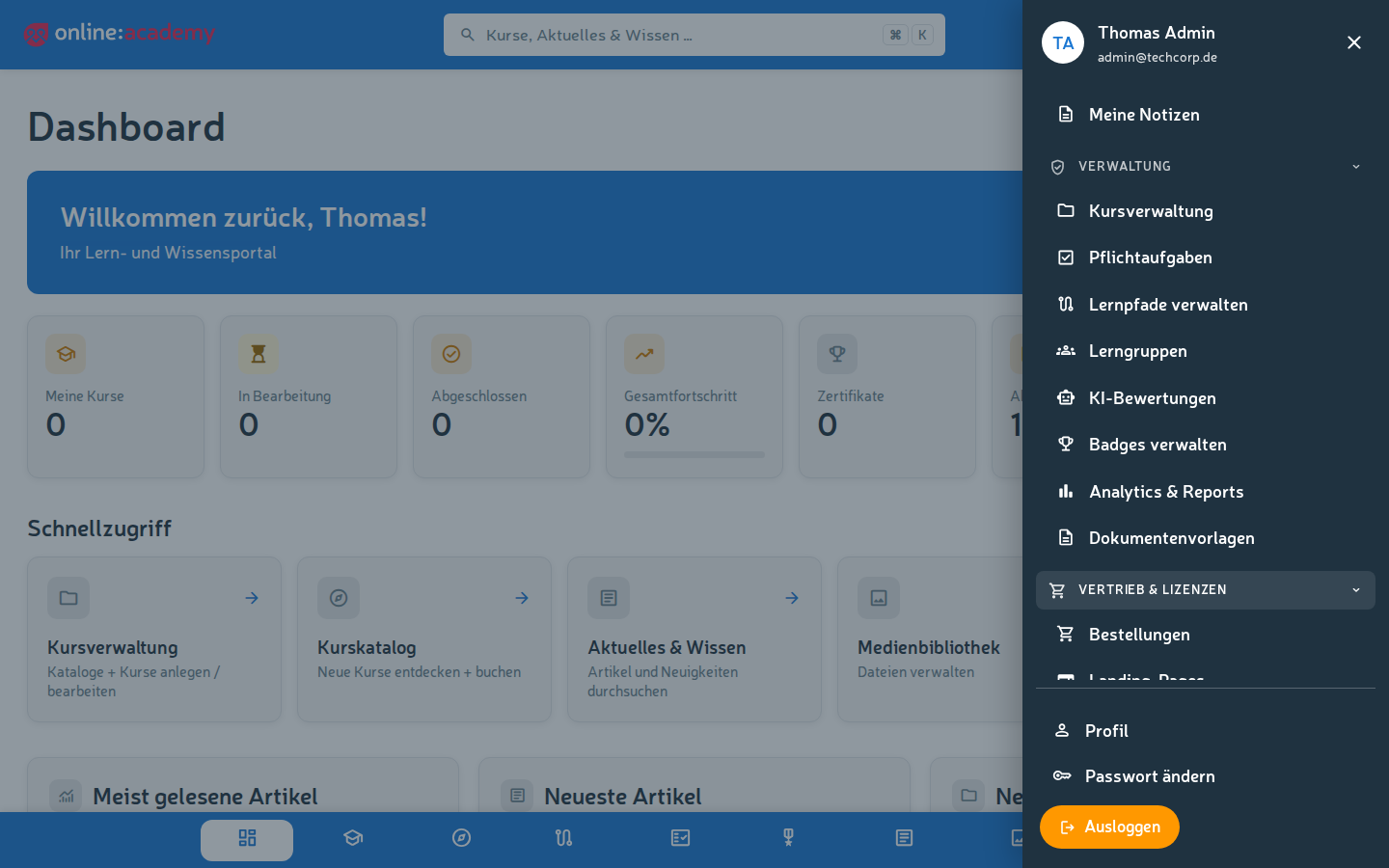
In the app, in the area Administration → Analytics & Reports. The entry is visible from the Content Manager role upward — and requires that the analytics feature is included in your company's product license.
A company-wide view — not to be confused with personal statistics
These reports show the numbers across all learners in your company (filtered by your area of responsibility). That's different from the personal learning statistics that every learner sees for their own account. More on this in the section Distinction from personal learning statistics.
Which dashboards are there?
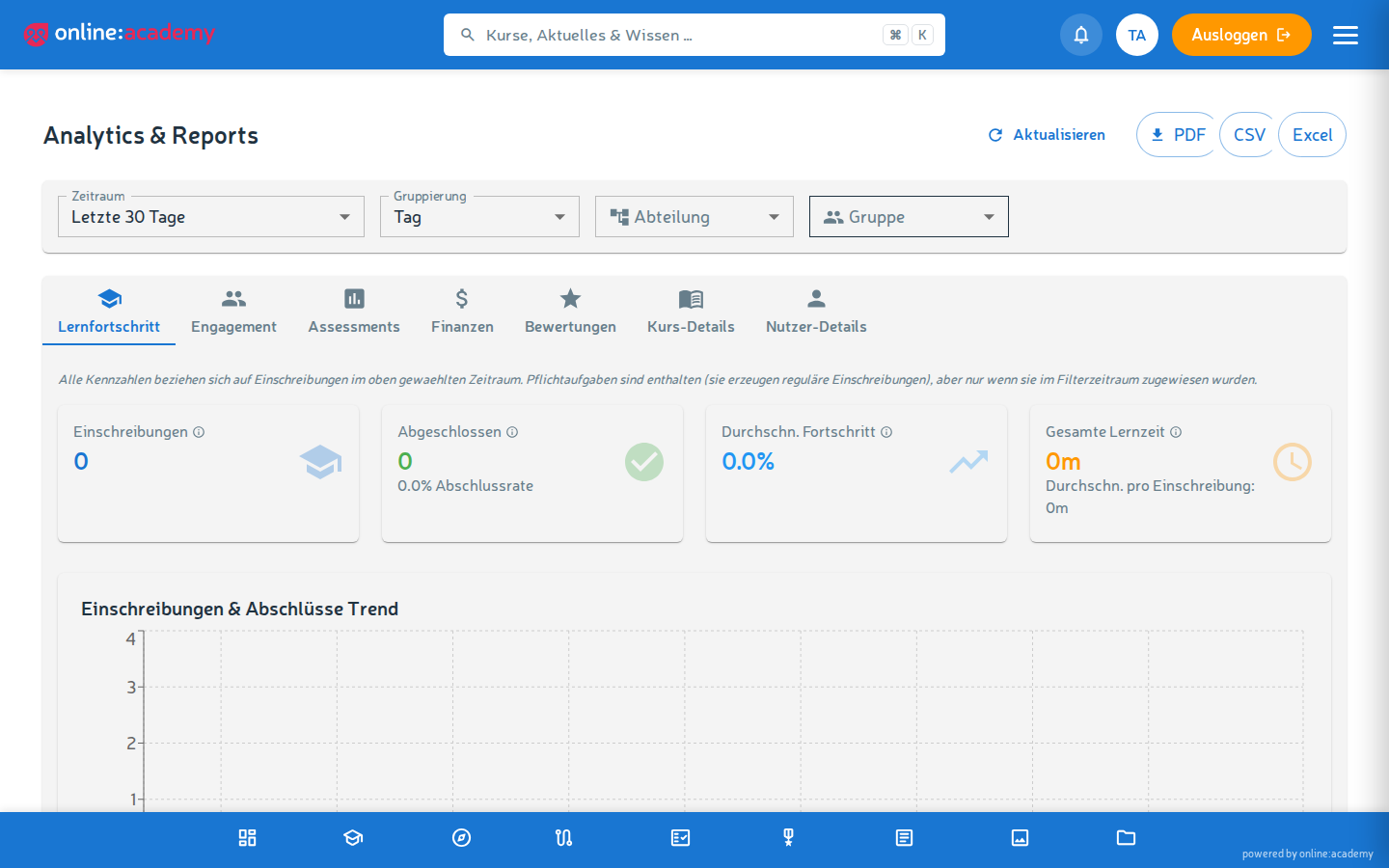
Depending on your role, several tabs are available. Content Managers see the learning reports, Company Admins additionally see the financial view. Each tab is its own live dashboard with charts and tables.
| Tab | Visible from | What it shows |
|---|---|---|
| Learning progress | Content Manager | Enrollment trend and completion trend over time, course statistics |
| Engagement | Content Manager | Active people (daily/weekly), average session duration, streak statistics, top performers |
| Assessments | Content Manager | Score distribution as well as fail and pass rates (aggregated company-wide) |
| Ratings | Content Manager | Course ratings by learners: average stars, comments, ratings per course |
| Finance | Company Admin | Revenue trends, breakdown by currency — aggregated from orders |
| Course details | Content Manager | Per course: participant list with progress, score, and last activity, lesson progress |
| User details | Content Manager | Per person: learning profile with courses, assessments, streak, and activity history in the selected time period |
How to read the most important dashboards
- Learning progress — The enrollments curve shows how many people newly start per unit of time; the completions curve shows how many finish. A large gap means "backlog": many starts, few completions — often a sign that courses are too hard or that too many mandatory assignments are running in parallel.
- Engagement — How many from your company are regularly active? The streak statistics show who sticks with it daily. Top performers are well suited for recognition in team meetings.
- Assessments — If low scores pile up, courses are too hard or the learning materials have gaps. For the course level, it's worth looking into Course details; a good basis for talking with the trainer.
- Ratings — How are the courses landing with learners? Low average stars and critical comments indicate a need for action on the course content.
Filtering by time period, department, and course
Using the filters above the charts, you narrow down the displayed data:
| Filter | For what |
|---|---|
| Time period | Quick selection of 7 / 30 / 90 / 365 days or a custom start and end date |
| Grouping | Day, week, or month — affects how finely the trend charts resolve |
| Department / group | Narrowing to a department or user group of your company (you maintain user groups in the Admin Portal — not to be confused with the app's learning groups) |
The filters affect the charts and tables of the learning tabs (the Ratings tab has its own course filter). When you switch tabs, the set filters are retained. You get an analysis for a single course via the Course details tab.
Narrow down first, then analyze
For a whole year across many people, the system computes for a while. Choose the time period as narrow as possible for your question — that makes the dashboards noticeably faster.
Export for personnel files and reporting
The base dashboards (learning progress, engagement, assessments, finance) can be exported directly as a file. For this there is an Export button in the dashboard:
| Format | For what |
|---|---|
| Quick to share, visualizations preserved — good as a report attachment or for board reporting | |
| CSV | Table data for further processing in Excel or other tools |
| Excel (.xlsx) | Like CSV, but formatted with header styling and correct encoding |
Export in the detail tabs
The detail tabs can export too — in their own way: Course details offers printing the participant list (PDF) and the bundled certificate download (ZIP); User details exports the person report as PDF, CSV, or Excel. The Ratings tab has no export.
Does Excel open umlauts incorrectly?
When opening in Excel, import via Data → From Text/CSV rather than by double-clicking. That way Excel detects the encoding correctly and umlauts are displayed properly.
Typical occasions:
- Quarterly, pull the learning progress as Excel and feed it into the HR system.
- Before important meetings, export the current learning progress report as PDF — good as a basis for discussion.
- For the personnel file, you usually need the learning history of one individual person — see Reports and export.
- Compliance records for certificates are pulled in a bundle via the certificate download in the Course details tab.
Distinction from personal learning statistics
There are two separate views — don't confuse them:
- Analytics (Administration → Analytics & Reports) — the company-wide, aggregated view across all learners in your area of responsibility. Intended for reporting and steering. Only visible to administrator roles.
- Personal learning statistics — what each learner sees in their own portal about their own account: their own courses, their own progress, their own learning history. Everyone can download this themselves as PDF/CSV.
If you need the detailed history for exactly one person, look in the User details tab or pull a person report via Reports and export.
Data protection note
In analytics you work with two levels of detail:
- The aggregated dashboards (trends, distributions) show totals and rates across many people — the top-performer list and the detail tabs show individual people.
- The person-specific views (user details, person reports) show individual people with their names and full learning history.
Please handle the person-specific views responsibly: use them only for legitimate purposes such as personnel conversations or compliance records, and share exports only with authorized people.
Licensed third-party courses
Reports can also include learning activity on courses that your company has licensed from other providers — this is intended and correct. Keep it in mind for data protection inquiries.
Related topics
- Team progress — keeping an eye on the learning status of your department or group
- Reports and export — export reports as a live dashboard and for personnel files/compliance