Company and branding
As the administrator of your company, you control how online:academy presents itself to your people: from the company name through the structure into departments all the way to your own logo and corporate colors. You'll find these settings in the Admin Portal — the separate administration interface alongside the actual learning app.
Where am I here?
Departments and branding live in the Admin Portal, not in the learning app where your learners take their courses. Creating or inviting users also happens here — see Managing users.
Company master data
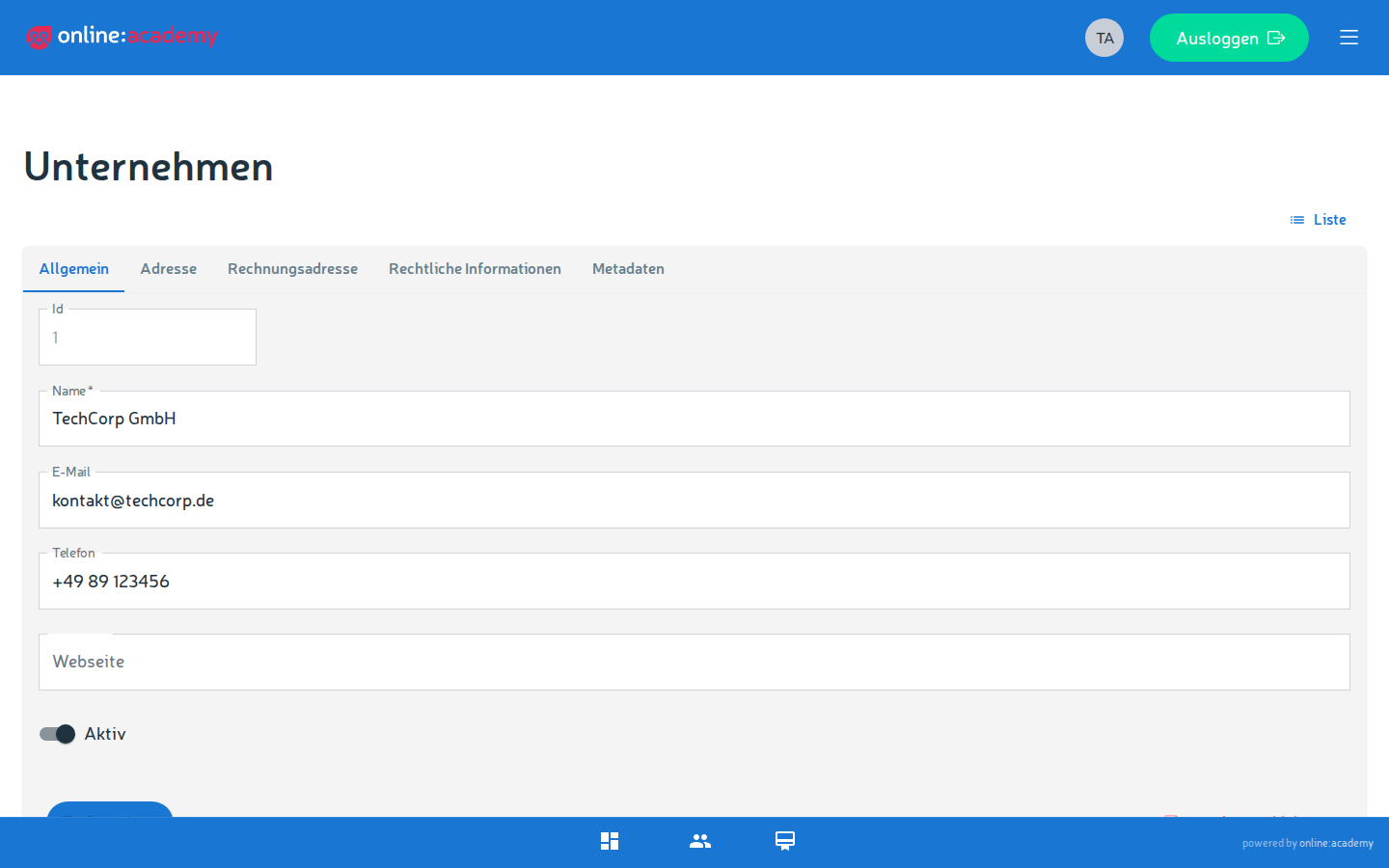
The master data is the basic information about your company: name, contact, and address. It's used, for example, for contact and invoice emails.
The master data is maintained by the platform team — as a Company Admin you can view it, but not change it yourself. If your company's name, address, or contact details change, let your point of contact on the platform side know.
Creating and using departments
Departments structure your users — for example by location, team, or business area. That pays off in two places:
- Targeted mandatory assignments — assign a whole department to a mandatory course in one go (see Assigning mandatory assignments).
- Meaningful reports — filter and evaluate progress by department (see Reports and export).
Here's how to create a department:
- In the Admin Portal, switch to Organization settings, tab Departments.
- Click New department, give it a meaningful name, and Save.
- Assign users to the department — either directly in user management per person or, for invited administrators, already when they accept the invitation.
Departments first, then invitations
It's best to create your departments before you invite larger groups. Then new people can be assigned to the right department straight away, instead of having to be moved one by one later.
Branding: logo, colors, app title, and custom domain
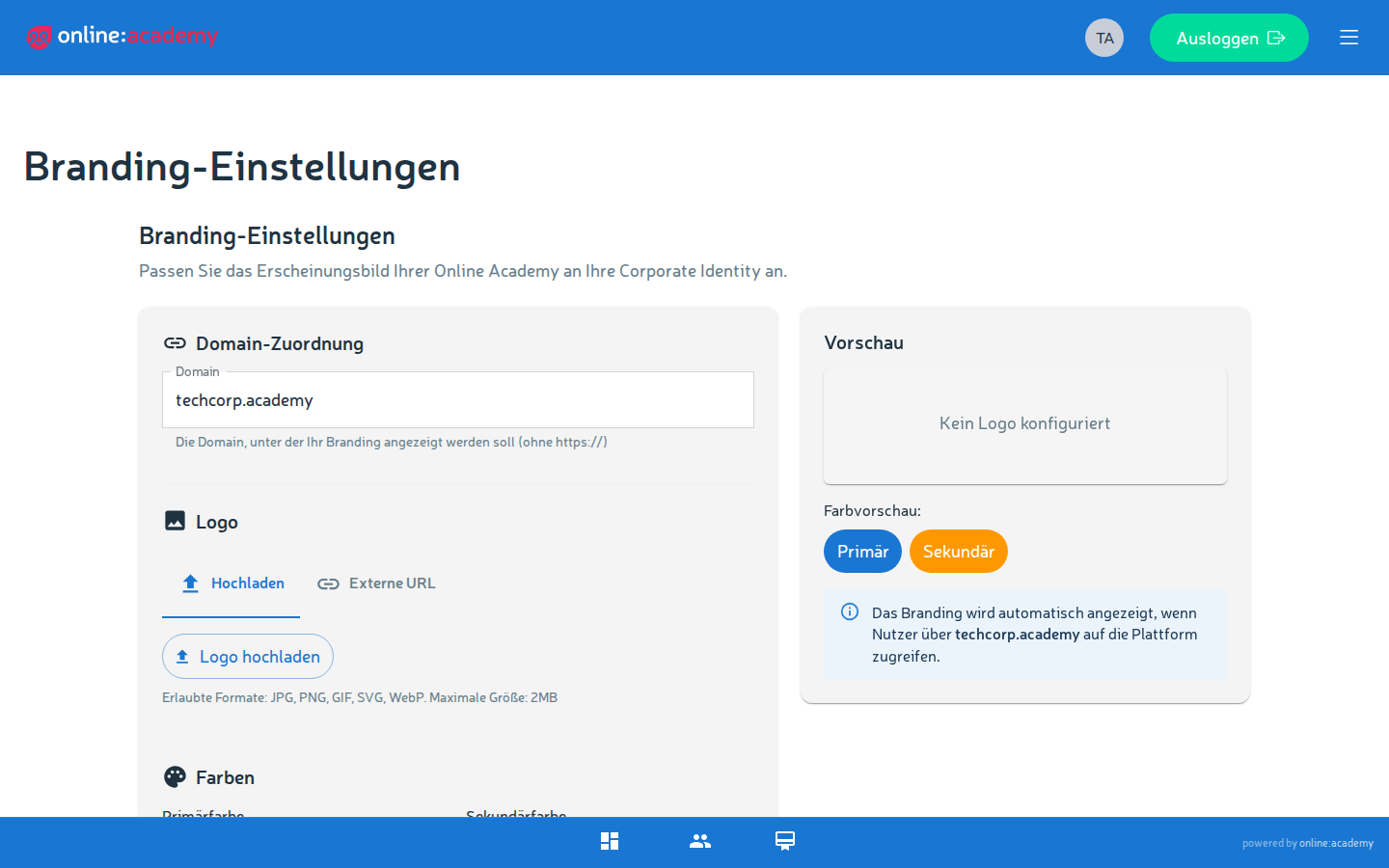
With branding you give online:academy your face. Your settings take effect on the login page, the learning app, and the Admin Portal of your own company — so your people consistently see your colors and your logo, not a neutral default design.
What you can customize
| Setting | Meaning |
|---|---|
| Logo | Your company logo, visible at the top of the application |
| Favicon | The small icon in the browser tab |
| Login background | Background image of the sign-in page |
| Primary color | Main color for buttons, accents, and highlights |
| Secondary / accent color | Complementary color for accents |
| App title | The name that appears in the application and in the browser tab |
| "Powered by" text | A small additional line, e.g. a note about your company |
| Custom domain | An optional web address of your own for your academy (e.g. academy.yourcompany.com) |
Step by step
- In the Admin Portal, switch to Branding settings.
- Store logo, favicon, and login background — via file upload or via an image URL.
- Enter the primary and accent color as a color value (hex code, e.g.
#0B5FFF). Tip: use your official brand colors. - Set the app title and, optionally, the "Powered by" text.
- If desired: enter a custom domain.
- Save — the changes are applied for all users of your company.
Sign out briefly and check
After saving, take a look at the login page while signed out. That way you see exactly the picture your learners get when signing in.
A custom domain needs some lead time
A custom domain is the basis for a fully white-labeled appearance. For it to work, the DNS records have to be right. If you want to set up a custom domain, it's best to discuss it with the platform team early on.
Company groups (parent company)
If your company belongs to a group — say a single hotel within a hotel chain — it can be linked to a company group. All tenants with the same top-level parent company then jointly form a group.
The benefit: within the group, a central office can provide courses internally to the group — via the marketplace with the visibility "Company group only". That way the individual locations obtain central content without having to create it themselves. How this intra-group licensing works in detail is described under Marketplace and commerce.
The link is maintained by the platform team
Only platform operators can assign a company to a parent company — not you as a Company Admin. That's why the group assignment doesn't appear in your administration view at all; the platform team makes the link for you. For this, contact your point of contact on the platform side.
Sign in again after a change
If the group assignment has been changed, the affected users have to sign in again once. Only then does the new assignment take effect — before that, intra-group content is not yet shown.
Frequently asked questions
My new colors aren't shown everywhere. Reload the page and, if necessary, sign out and back in once. Branding takes effect on the login page, learning app, and Admin Portal of your company — other tenants are not affected by it.
Can I set different colors for individual departments? No. Branding applies uniformly to your entire company. Departments serve to structure users, not the appearance.
How is our company assigned to a company group? Only the platform team sets the link. Get in touch with your point of contact on the platform side if your company is to be assigned to a group.
A subsidiary doesn't see the centrally provided courses. Check two things: is the group assignment actually set (platform team), and have the affected users signed in again since then? Details on intra-group provisioning under Marketplace and commerce.